The Siptalk Web Phone can pass a call on to a colleague's extension, a mobile or any other number. You can speak to the person first, or put the caller straight through. This guide follows Mei Chen at Acme Plumbing, who answers a customer asking about an invoice and transfers them to Priya in Accounts on extension 205.
If the Web Phone isn't set up yet, start with Set Up the Siptalk Web Phone.
Two ways to transfer
- Ask First rings the other person while the caller waits on hold. You tell them who's calling, then connect the caller. Use this when they might be busy or need to know what the call is about. It's sometimes called an attended or warm transfer.
- Transfer Now puts the caller straight through without you speaking to the other person first. It's sometimes called a blind transfer.
Start the transfer
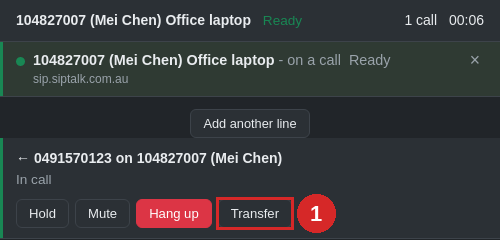
On the call, click [Transfer] (1).
The caller goes on hold, and a green bar reads Transfer [caller] to… (1). While it's showing, the keypad types into the number field instead of sending tones to the caller. Enter the number to transfer to (2): an extension's short dial code such as 205, or a full phone number. Then choose [Ask First] (3) or [Transfer Now] (4).
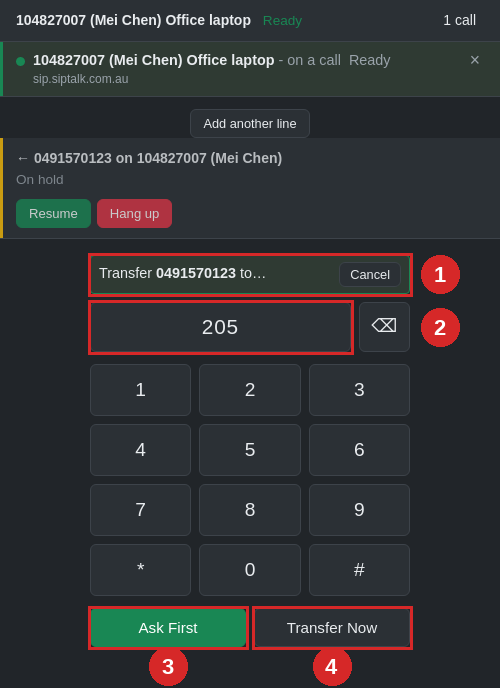
Pressing Enter does the same as Ask First, so a caller is never put through to someone by accident. To change your mind, click [Cancel] on the bar, and the caller comes off hold.
Ask First
The Web Phone calls 205 while the caller stays on hold in the row above. When Priya answers, tell her who's calling. To put the caller through, click [Complete Transfer] (1) on Priya's call.
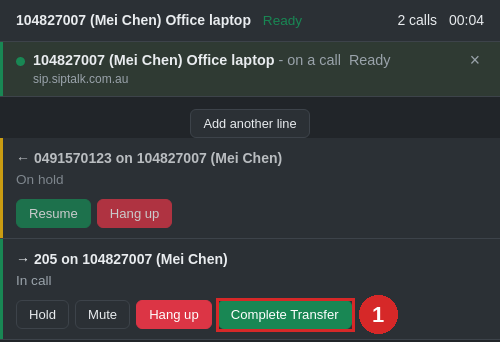
If Priya can't take the call, click [Hang up] on her call, or [Cancel] if it's still ringing. The transfer is cancelled and the caller comes off hold, back with you.
Transfer Now
The caller is sent straight to the number you entered, and the call leaves your Web Phone once the other end takes it. If it fails, see If the transfer doesn't go through.
When it's done
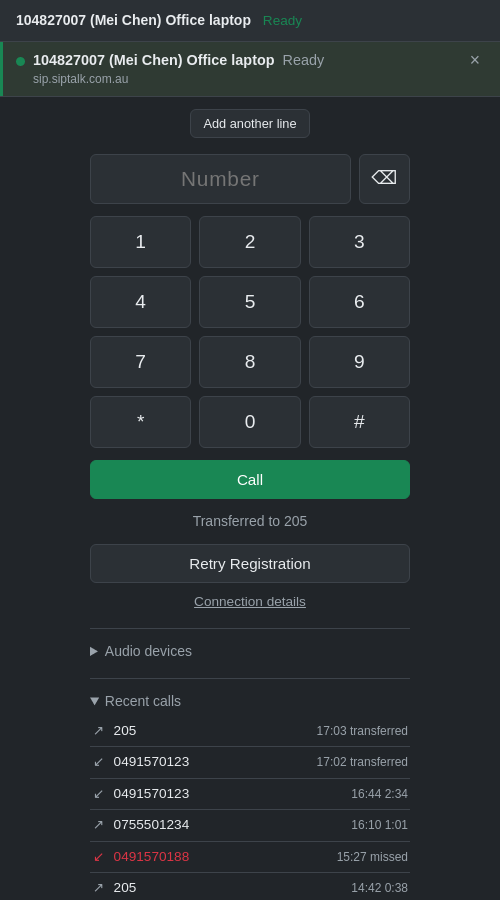
The call disappears from your Web Phone and the app shows Transferred to 205. In Recent calls, the call is marked transferred.
If the transfer doesn't go through
The caller isn't lost. A transfer only finishes once the other end takes the call; until then the caller stays with you. If the other phone is busy or the number can't be reached, the app shows Transfer failed with the reason, for example 486 Busy Here.
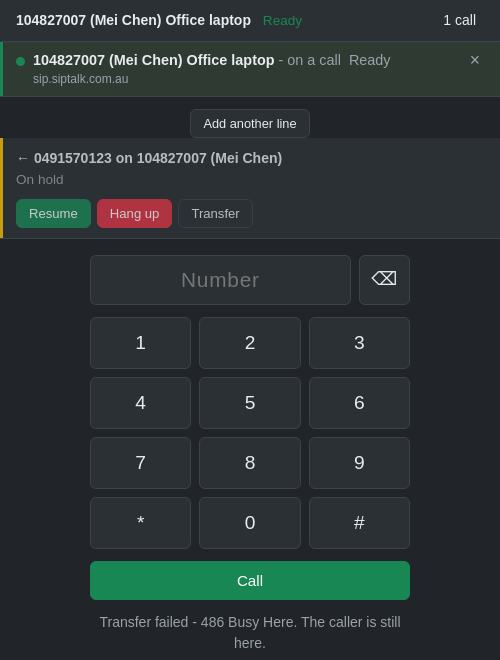
After a Transfer Now fails, the caller is still on hold. Click [Resume] to speak to them again, then try another number or take a message.
Good to know
- A held call can be transferred too. The Transfer button shows on held calls as well as the one you're on.
- If the caller hangs up while you're asking someone, the transfer is cancelled and you're left on the call with the person you asked.
- One transfer at a time. While one is in progress, the other calls don't show a Transfer button.