The Cisco SPA122 is an analogue telephone adapter (ATA): it lets an ordinary corded or cordless phone work as a Siptalk extension. The phone plugs into the adapter, the adapter plugs into your network, and this guide covers the settings in between.
Required information
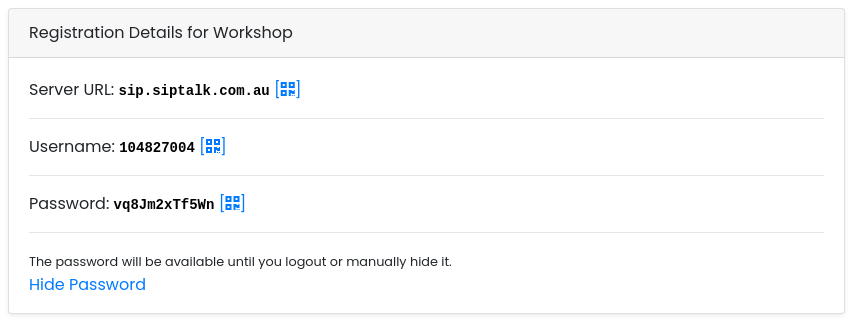
You need three things from the portal:
- Server URL — the server the adapter registers to
- Username — the extension's username
- Password — the extension's password
Go to Services → Device Extensions, click [Manage] on the extension, and look at the Registration Details card. The password can't be read back once set, so click Generate New Password if it isn't showing.
Connect the adapter
- Plug your phone into the PHONE 1 port.
- Connect the INTERNET port to your router or switch with a network cable.
- Connect the power. Wait about a minute for the lights to settle.
The other network port, marked ETHERNET, is for a computer. It isn't needed for normal use, but it's a handy way to reach the adapter if you can't find it on your network — see the next step.
Find the adapter's address
The adapter's settings are on a web page it serves. To reach it you need its IP address on your network. Pick up the phone connected to the adapter and dial:
Four stars opens the adapter's voice menu; 110# reads out the address, digit by digit. Write it down and hang up.
192.168.15.1, the adapter's own address on that port.
Log in
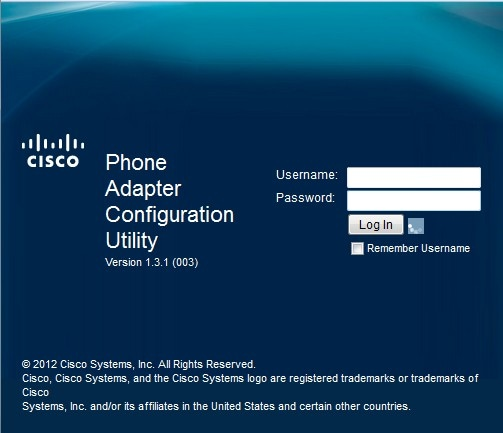
On a computer on the same network, enter the address in a browser. If the browser warns about the site's certificate, choose to proceed — it's your own adapter. Log in with username admin and, on a new adapter, password admin.
Enter the extension on Quick Setup
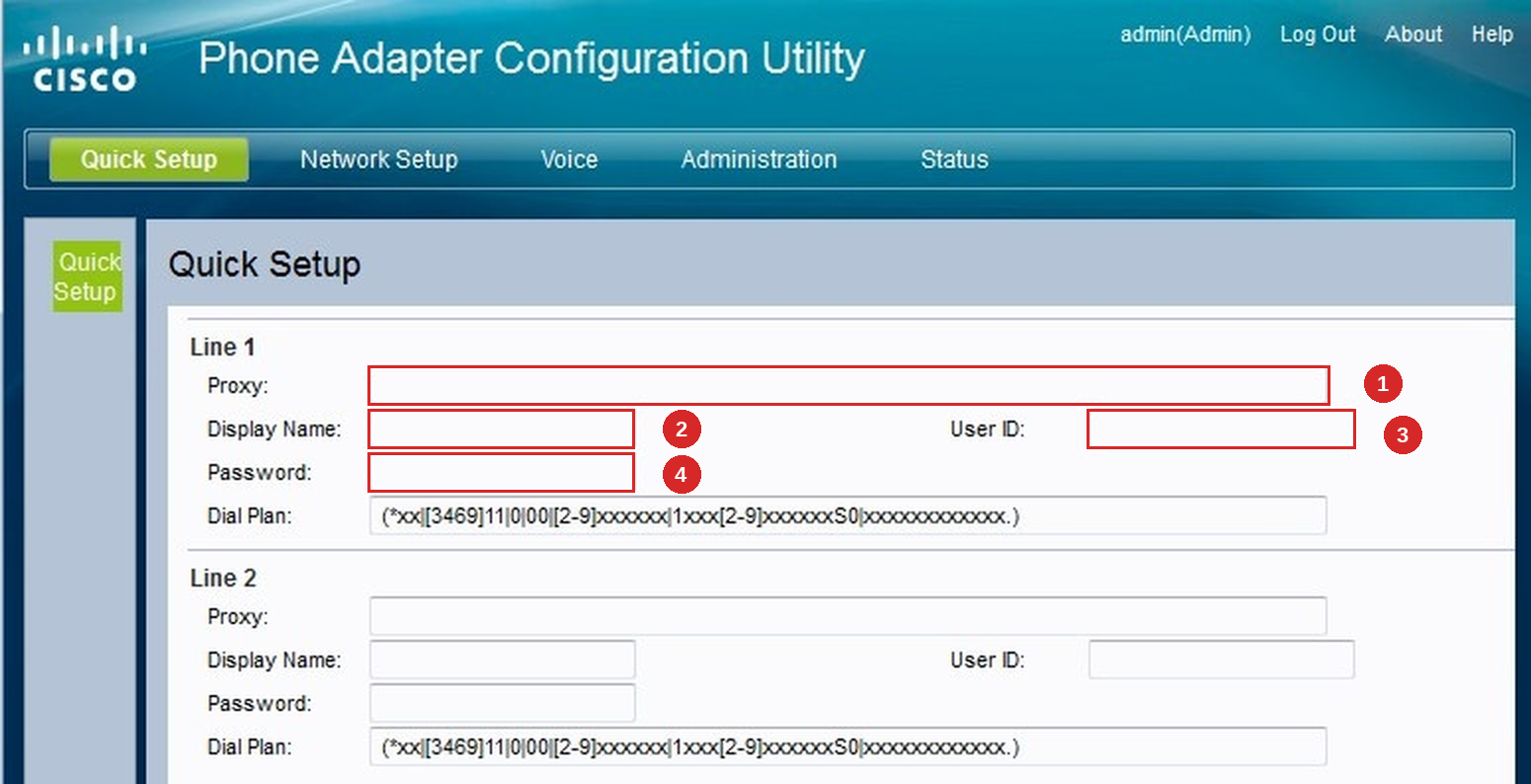
After logging in the adapter opens on the Quick Setup page, which has everything the extension needs. Under Line 1 enter:
- Proxy — the Server URL from the portal, hostname only (no
sip:, no port) - Display Name — the 4-digit extension alias (e.g. 1001)
- User ID — the Username from the portal
- Password — the Password from the portal
Leave Dial Plan as it is, leave Line 2 empty unless you're connecting a second phone, and click [Submit] at the bottom of the page.
Registration and NAT settings
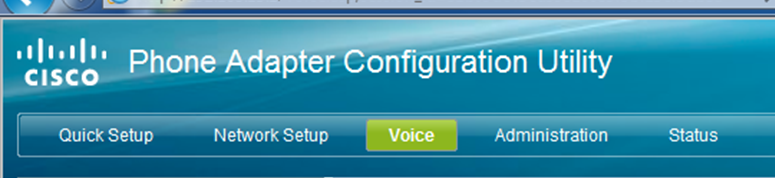
Quick Setup covers the account; a few settings on the full Voice tab keep the adapter registered reliably behind a typical office router. Click Voice in the top menu, then Line 1 in the left-hand list.
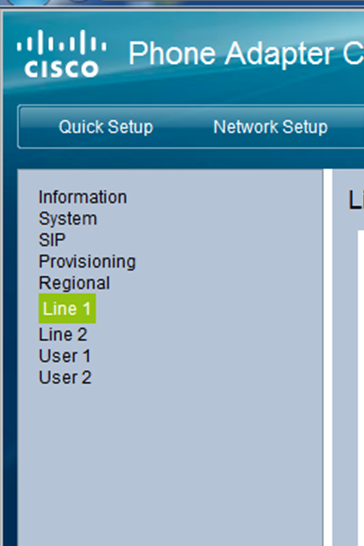
On the Line 1 page, find these sections and set:
- Proxy and Registration → Register Expires — 180
- NAT Settings → NAT Mapping Enable — yes
- NAT Settings → NAT Keep Alive Enable — yes
Then click SIP in the left-hand list and, under NAT Support Parameters, set:
- STUN Enable — yes
- STUN Server —
stun.siptalk.com.au
Click [Submit]. The adapter applies the settings and re-registers; it doesn't need a reboot.
Verify registration
Within about 30 seconds the adapter should register. Check it in three places:
- The phone — pick it up. A dial tone means the line is up.
- The adapter — under Voice → Information, the Line 1 Status section shows Registration State: Registered.
- The portal — the extension's Extension Status card shows Online, with the SPA122 as the User Agent.
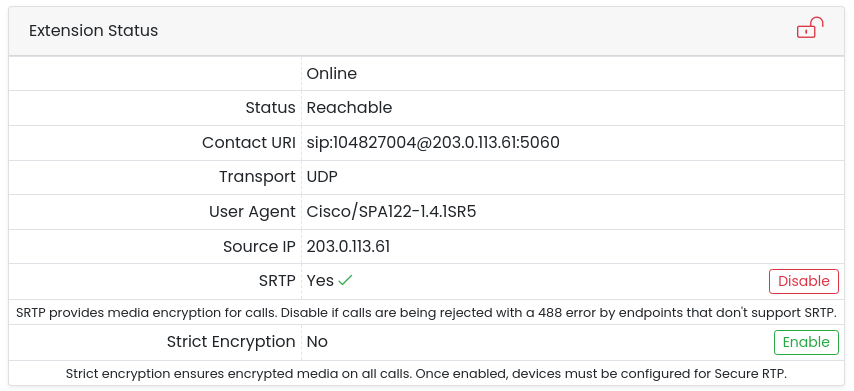
Finally, dial 99299 from the phone. It's an echo test: if you hear yourself back, audio works in both directions.
Troubleshooting
No dial tone
- Make sure the phone is in the PHONE 1 port, not PHONE 2 (Line 2 isn't configured).
- Check Voice → Line 1 → Line Enable is yes.
- If the adapter isn't registered, there's no dial tone — see the next item.
Registration State shows Failed or Not Registered
- Check the User ID and Password against the portal; the password is case-sensitive.
- Make sure Proxy holds the hostname only — no
sip:prefix, no port. - Confirm the adapter has internet access: Network Setup → Basic Setup should show an address from your router on the WAN side.
- If your router has SIP ALG, turn it off. It rewrites SIP traffic and commonly breaks registration.
One-way audio or no audio
Almost always NAT. Check NAT Mapping Enable and NAT Keep Alive Enable are both yes on Line 1, and STUN is enabled with stun.siptalk.com.au under SIP. Your firewall needs UDP 5060 for SIP, UDP 16384–16482 for the adapter's audio, and UDP 3478 for STUN.
Can't reach the web page
- Dial **** then 110# again; the address may have changed since you last looked.
- Use the ETHERNET port and
192.168.15.1as a fallback. - If the admin password is lost, hold the RESET button for 30 seconds to return the adapter to factory defaults, then start again from Log in.
Fax machines, EFTPOS terminals and alarm diallers
These can work through the SPA122 but need settings this guide doesn't cover (fax pass-through and T.38). Contact us before connecting one.
Login and Quick Setup screenshots are from Cisco's Access the Web Configuration Utility on the SPA122, © Cisco Systems, Inc. Menu crops are from the UBOSS SPA112/SPA122 configuration guide.