Cloud Softphone is the easiest way to use your Siptalk extension on a mobile. There's nothing to type in: the portal shows a QR code for the extension, you scan it from the app, and the app configures itself with the server, username, password and codec settings.
What you need
- A Siptalk device extension for the softphone. If you don't have one yet, add a device extension first.
- Portal access with permission to manage extensions.
- A second screen. The QR code shows in the portal, so open the portal on a computer (or another phone) and scan it with the phone you're setting up. If the portal and the app are on the same phone, you can type the details in instead — see below.
Install the app
Install Cloud Softphone by Acrobits from your phone's app store:
- Cloud Softphone on the App Store (iPhone and iPad)
- Cloud Softphone on Google Play (Android)
Open it once so it can ask for microphone and notification permissions — allow both, or you won't hear calls or be told about incoming ones. Leave it on the sign-in screen for now.
Open the extension
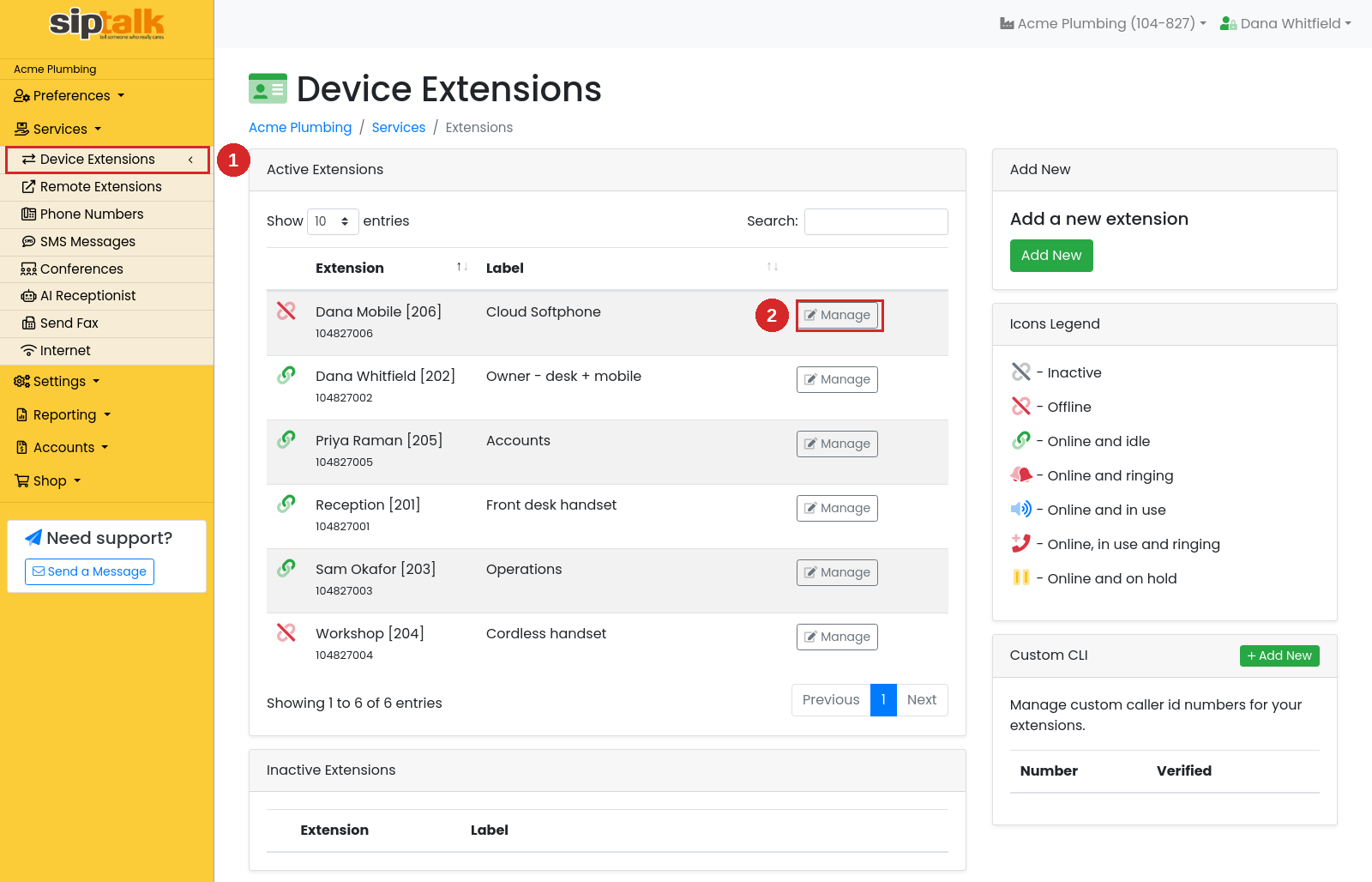
In the portal, go to Services → Device Extensions and click [Manage] on the extension the softphone will use.
Generate the password
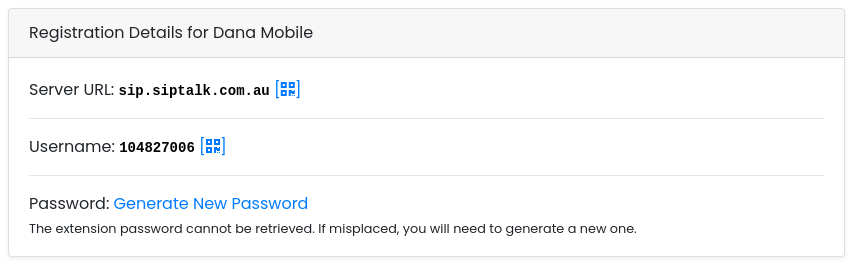
For security the portal never stores an extension password where it can be read back, so the QR code stays hidden until you generate one. In the Registration Details card, click Generate New Password.
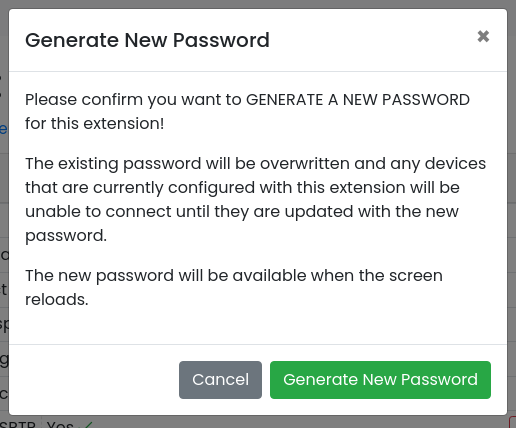
Confirm when asked. This is the step that replaces any existing password on the extension:
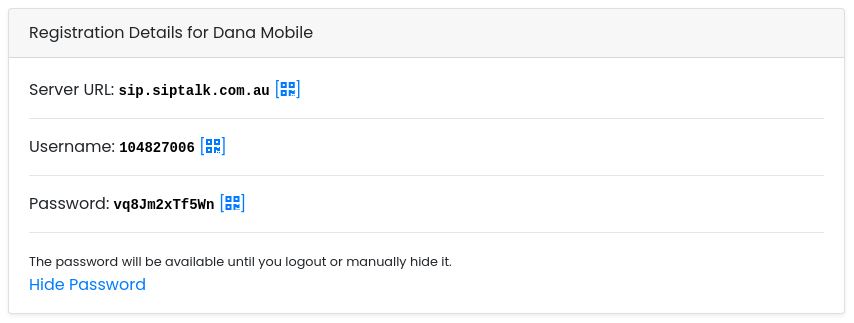
The page reloads with the new password showing in Registration Details. It stays visible until you log out or click Hide Password, so you can come back to it if the scan doesn't work first time.
Scan the QR code
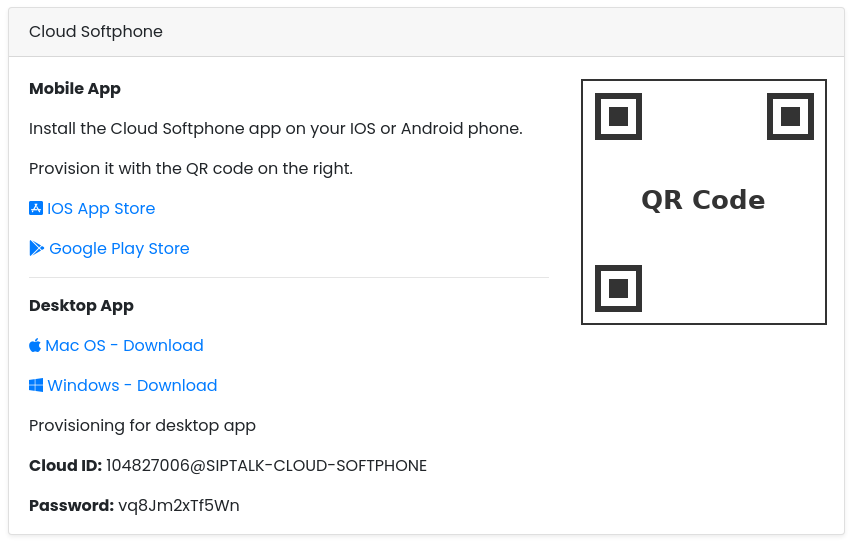
Scroll down to the Cloud Softphone card. Now that the password exists, the QR code is shown on the right:
On your phone, in Cloud Softphone:
- Tap the Scan QR tile at the bottom of the sign-in screen.
- Allow camera access if asked.
- Point the camera at the QR code on your computer screen. It scans as soon as it's in frame — there's no button to press.
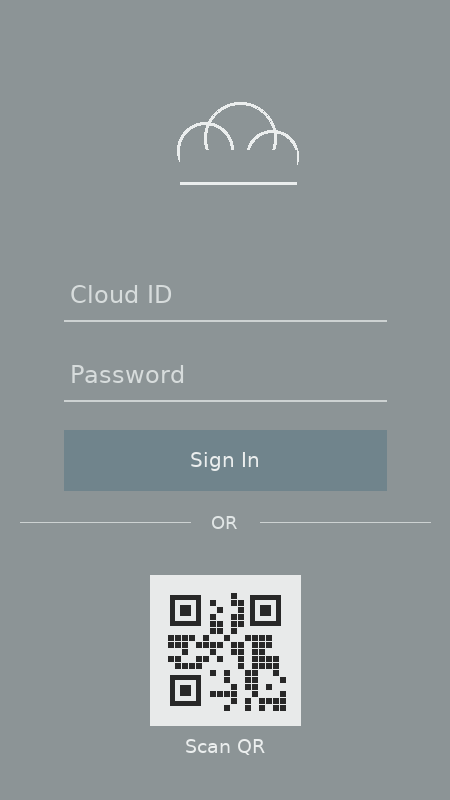
The app signs in and moves to its dialler. That's it — the extension is configured.
@SIPTALK-CLOUD-SOFTPHONE) and Password is the one you just generated. Then tap Sign In.
Desktop app
The same card links to Cloud Softphone for Mac OS and Windows. Computers have no camera to scan with, so the card also prints what you need to type in:
- Download and install the app for your computer from the links in the card.
- Open it. On the sign-in screen enter the Cloud ID and Password exactly as shown in the card.
- Click Sign In.
Check it's connected
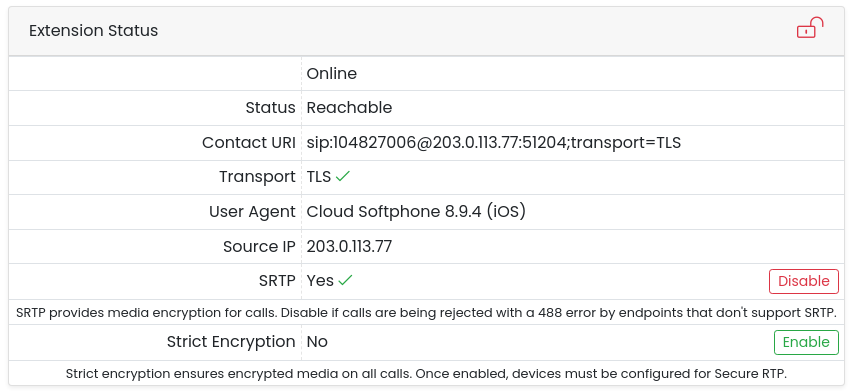
Back in the portal, reload the extension page. The Extension Status card at the top should now show Online and Reachable, with Cloud Softphone as the User Agent:
Then test from the app:
- Dial 99299 (the echo test) and speak. If you hear yourself back, audio is working both ways.
- Call one of your numbers from another phone to check incoming calls ring the app.
- Lock your phone, wait a couple of minutes, and call again to make sure calls still arrive while the app is in the background.
Once you're done, you can click Hide Password in Registration Details. The app keeps its own copy; hiding it just takes it off the screen.
Troubleshooting
The card says "Provisioning Code Hidden"
No password has been generated in this login session. Go back to Generate the password. This also happens after you log out and back in, or after clicking Hide Password — generate a new one, and re-scan on any device that uses the extension.
The QR code won't scan
- Zoom the browser in (Ctrl + or Cmd +) so the code is larger, and reduce screen glare
- Hold the phone still 15–20 cm from the screen and let it focus
- If it still won't read, type the Cloud ID and password in instead (see above)
"Sign in failed" or the app shows an error after scanning
- The password has probably been regenerated since the QR code was shown — for example by another user, or by you on a second attempt. Reload the extension page and scan the current code.
- If you typed the details in, check the Cloud ID includes
@SIPTALK-CLOUD-SOFTPHONEand that the password has no spaces.
Calls don't arrive when the app is closed
- Check notifications are allowed for Cloud Softphone in your phone's settings
- On Android, turn off battery optimisation for Cloud Softphone (Settings → Apps → Cloud Softphone → Battery) so the system doesn't put it to sleep
- If a desktop app is signed in to the same extension, it has taken the registration — see the note under Desktop app
My desk phone stopped working after this
The desk phone was already registered to that extension, and generating the password disconnected it. Each extension should only ever have one device on it, so don't try to put the softphone alongside the desk phone. Instead, add a new extension for the softphone and generate a password for that one, then put the new password from this extension back into the desk phone so it reconnects.