Groundwire by Acrobits is a premium SIP softphone for iOS and Android with excellent push notification support. It's a good choice if reliable background call reception matters more to you than a free app.
Prerequisites
Before configuring Groundwire, ensure you have:
- An active Siptalk device extension (add one here)
- Groundwire installed from the App Store (iOS) or Google Play (Android)
- Your extension's SIP credentials from the Siptalk portal (Server URL, Username, Password) — see below
Get your extension's credentials
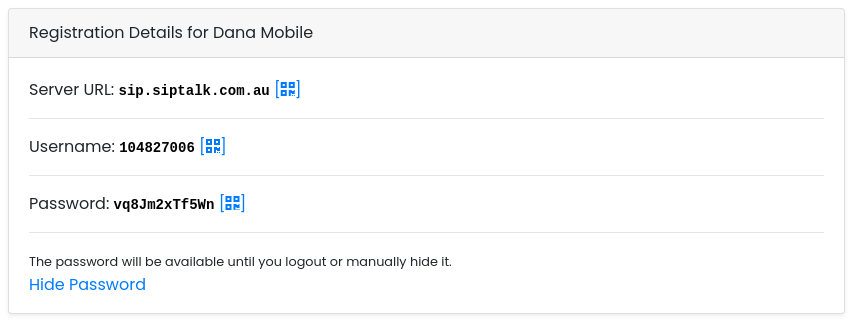
In the portal, go to Services → Device Extensions, click [Manage] on the extension, and look at the Registration Details card. It shows the Server URL and Username. The password is never stored where it can be read back, so click Generate New Password to create one; the page reloads with it showing, and it stays visible until you log out or click Hide Password.
Add a SIP account
- Open Groundwire and tap Settings (gear icon)
- Tap Accounts
- Tap the + button to add a new account
- Select Generic SIP Account
SIP account settings
Enter your Siptalk extension details:
- Title — A descriptive name (e.g., "Siptalk - Office")
- Username — Your extension username from the portal
- Password — Your extension password
- Domain — Your SIP Server URL from the portal
sip: or any port number in the Domain field. Enter the server hostname only.
Network and NAT settings
Tap into Advanced Settings within the account, then configure the following:
NAT Traversal
- STUN — Enabled
- STUN Server —
stun.siptalk.com.au - STUN Port — 3478
- ICE — Enabled
Transport and registration
- SIP Transport — UDP
- SIP Port — 5060
- Registration Expiry — 180 seconds
Audio codec settings
Under Advanced Settings → Audio Codecs, enable these in order of preference:
- G.711 u-law (PCMU)
- G.711 a-law (PCMA)
- G.729 (if available)
- Opus (for lower bandwidth connections)
Disable any video codecs unless you specifically need video calling.
Push notifications
Groundwire's key advantage is its push notification support, which allows the app to receive calls reliably in the background without draining battery.
iOS
- Tap Advanced Settings → Push Notifications
- Set Incoming Calls to Push Notification
- Ensure iOS notification permissions are granted for Groundwire in Settings → Notifications
Android
- Tap Advanced Settings → Push Notifications
- Set Incoming Calls to Push Notification
- Disable battery optimisation for Groundwire in Settings → Apps → Groundwire → Battery
- Allow autostart if your device supports it
Testing your setup
After saving your account settings:
- Check the account status shows Registered (green indicator)
- Make an outbound test call to verify audio
- Call your number from another phone to test inbound calls
- Lock your phone and wait 2 minutes, then call again to verify push notifications are working
- Test on both WiFi and mobile data if applicable
Troubleshooting
Registration issues
- Authentication failed — Double-check username and password match the portal
- Timeout / unreachable — Verify the Domain field contains only the server hostname
- Forbidden (403) — Your extension may be locked, contact support
No incoming calls when backgrounded
- Confirm push notifications are set to Push Notification (not "Background" or "Disabled")
- On Android, ensure battery optimisation is disabled for Groundwire
- Check that iOS/Android notification permissions are granted
Audio problems
- No audio — Grant microphone permissions and check device volume
- One-way audio — Verify STUN and ICE are enabled in NAT settings
- Choppy audio — Switch to a more stable network or try a lower-bandwidth codec like G.729 or Opus
Firewall requirements
Ensure these ports are open on your network:
- UDP 5060 — SIP signalling
- UDP 10000-20000 — RTP media (audio)
- UDP 3478 — STUN