Zoiper is a free SIP softphone application that runs on Windows, Mac, Linux, iOS, and Android. This guide covers configuring Zoiper to work with your Siptalk extension.
Prerequisites
Before configuring Zoiper, ensure you have:
- An active Siptalk device extension (add one here)
- Zoiper application installed on your device
- Your extension's SIP credentials (Server URL, Username, Password) — see below
Get your extension's credentials
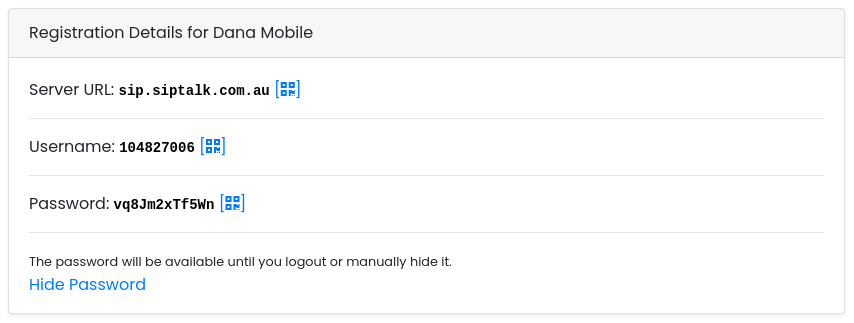
In the portal, go to Services → Device Extensions, click [Manage] on the extension, and look at the Registration Details card. It shows the Server URL and Username. The password is never stored where it can be read back, so click Generate New Password to create one; the page reloads with it showing, and it stays visible until you log out or click Hide Password.
Configuration steps
Step 1: Launch Zoiper and start configuration
- Open Zoiper on your device
- Click Settings (gear icon) or go to Settings → Accounts
- Click Add account or the + button
- Select SIP as the account type
- Choose Manual configuration (not the provider list)
Step 2: Enter account details
Enter the details from the Registration Details card into Zoiper:
- Account Name — Descriptive name (e.g., "Siptalk Extension 1001")
- Domain/Host — Your SIP Server URL from the portal
- Username — Your extension username
- Password — Your extension password
- Caller ID — Same as username (not the alias number)
Advanced settings
Network settings
- Registration expiry — 180 seconds
- Transport — UDP (recommended)
- Port — 5060
STUN settings
- Enable STUN — Yes
- STUN server — stun.siptalk.com.au
- STUN port — 3478
Audio codec configuration
Enable these codecs in order of preference:
- G.711 u-law (PCMU)
- G.711 a-law (PCMA)
- G.729 (if available)
- GSM
Mobile-specific settings
iOS configuration
- Enable Push notifications for background calls
- Grant microphone permissions when prompted
- Consider enabling Run in background
- Allow notifications for missed calls
Android configuration
- Disable battery optimization for Zoiper
- Grant all requested permissions
- Enable Keep alive WiFi in connectivity settings
- Allow autostart for reliability
Testing your configuration
After saving your configuration:
- Look for a Registered or Online status
- Make a test call to your mobile or another extension
- Test both incoming and outgoing calls
- Verify audio quality in both directions
- Test call hold and transfer features if required
Troubleshooting
Registration issues
- Authentication failed — Double-check username and password
- Request timeout — Verify server URL and internet connection
- NAT issues — Ensure STUN is enabled and configured
Audio problems
- No audio — Check device audio settings and microphone permissions
- One-way audio — Usually a NAT issue, verify STUN configuration
- Echo/feedback — Enable echo cancellation in audio settings
Firewall requirements
Ensure these ports are open on your network:
- UDP 5060 — SIP signaling
- UDP 10000-20000 — RTP media (audio)
- UDP 3478 — STUN
Best practices
- Use a headset for better audio quality and echo prevention
- Keep Zoiper updated to the latest version
- Use a stable internet connection (wired or strong WiFi)
- Configure Quality of Service (QoS) on your router for VoIP traffic