The Grandstream WP816 is a cordless Wi-Fi handset: there's no base station and no Ethernet cable, it joins your wireless network directly and registers to your Siptalk extension over it. This guide takes a new handset from the box to making calls.
Required information
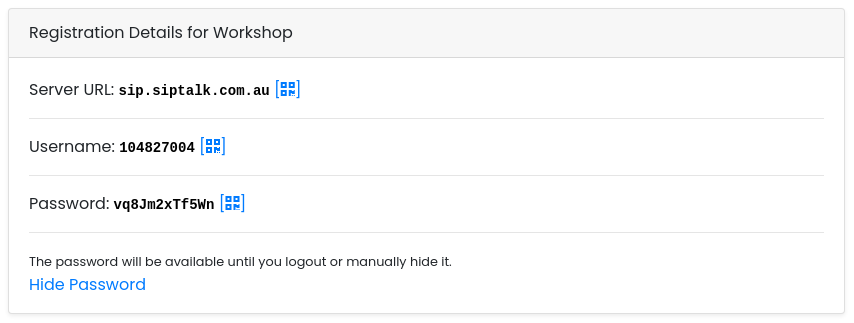
You need three things from the portal:
- Server URL — the server the handset registers to
- Username — the extension's username
- Password — the extension's password
Go to Services → Device Extensions, click [Manage] on the extension, and look at the Registration Details card. The password can't be read back once set, so click Generate New Password if it isn't showing.
Connect the handset to Wi-Fi
Charge the handset, switch it on, then on the handset go to Menu → Settings → Wi-Fi Settings → Wi-Fi Networks. Pick your network and enter its password. A Wi-Fi icon appears at the top of the screen once it's connected.
Log in to the web interface
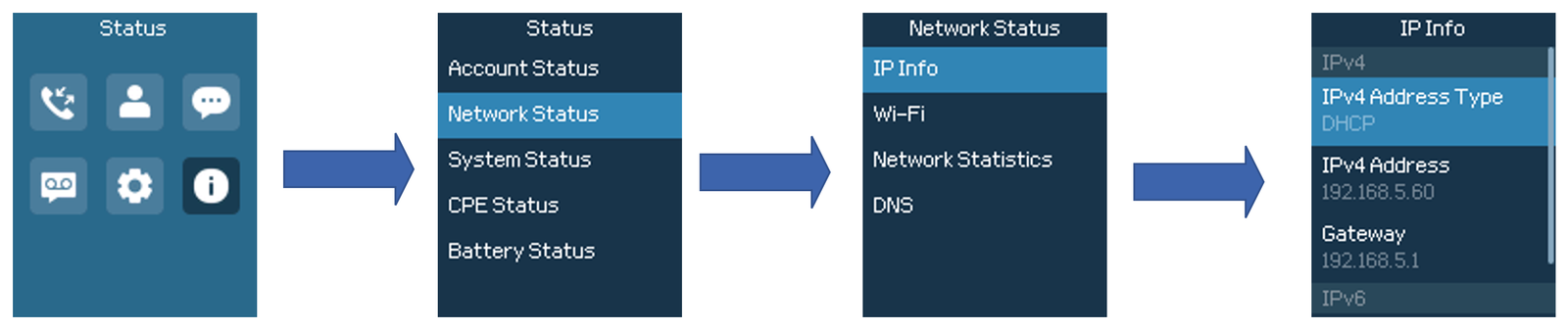
The easiest way to enter the account details is from a computer on the same network. First find the handset's IP address: on the handset, Menu → Status → Network Status → IP Info.
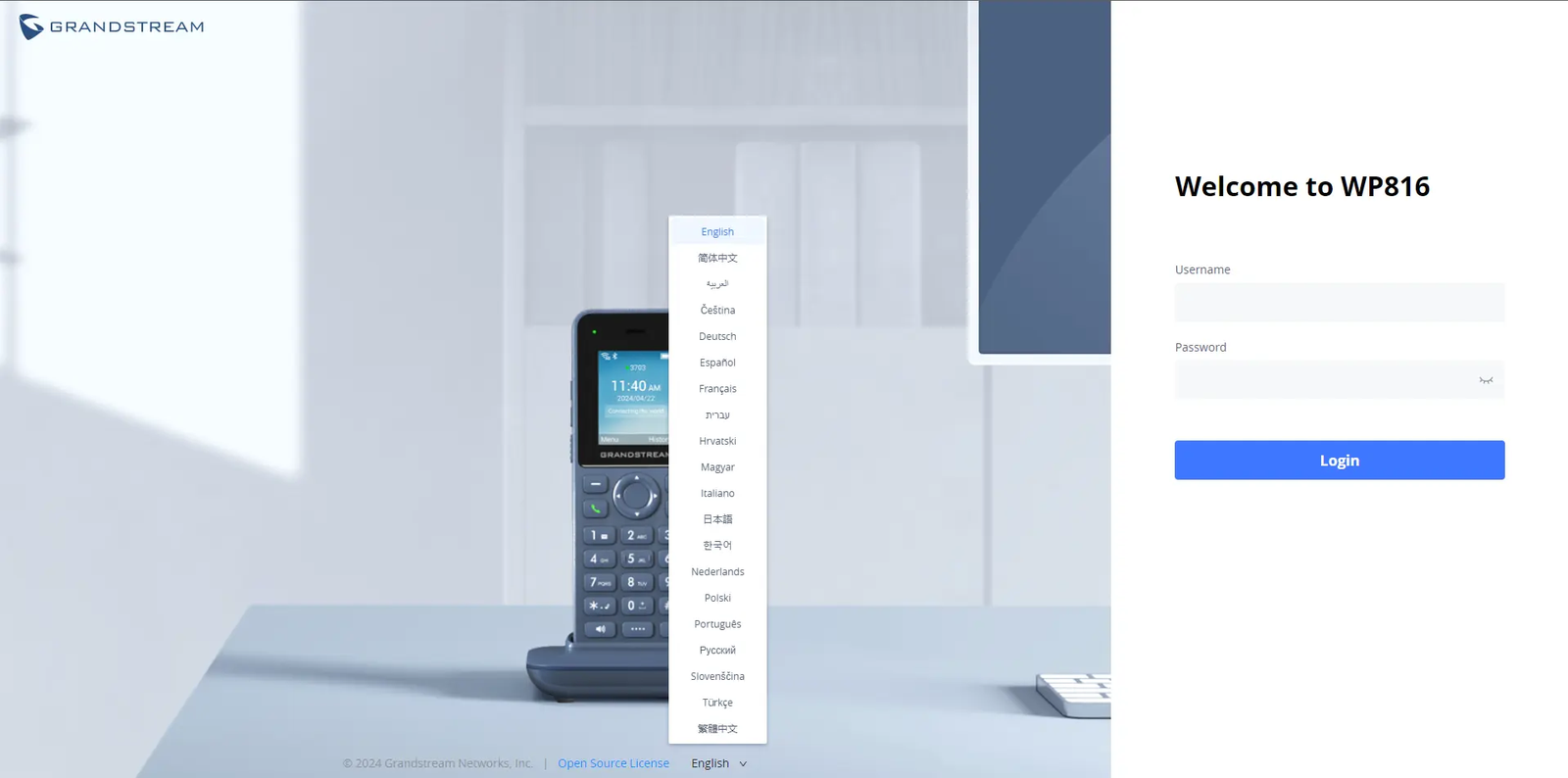
Open a browser and enter that IP address. Log in as admin. On a new WP816 the admin password is printed on the label under the battery; if you've set your own, use that.
Configure the SIP account
Go to Account → Account 1 → General Settings and enter:
- Account Active — ticked
- Account Name — the 4-digit extension alias (e.g. 1001)
- SIP Server — the Server URL from the portal
- SIP User ID — the Username from the portal
- SIP Authentication ID — the Username from the portal, again
- SIP Authentication Password — the Password from the portal
- Name — the 4-digit extension alias
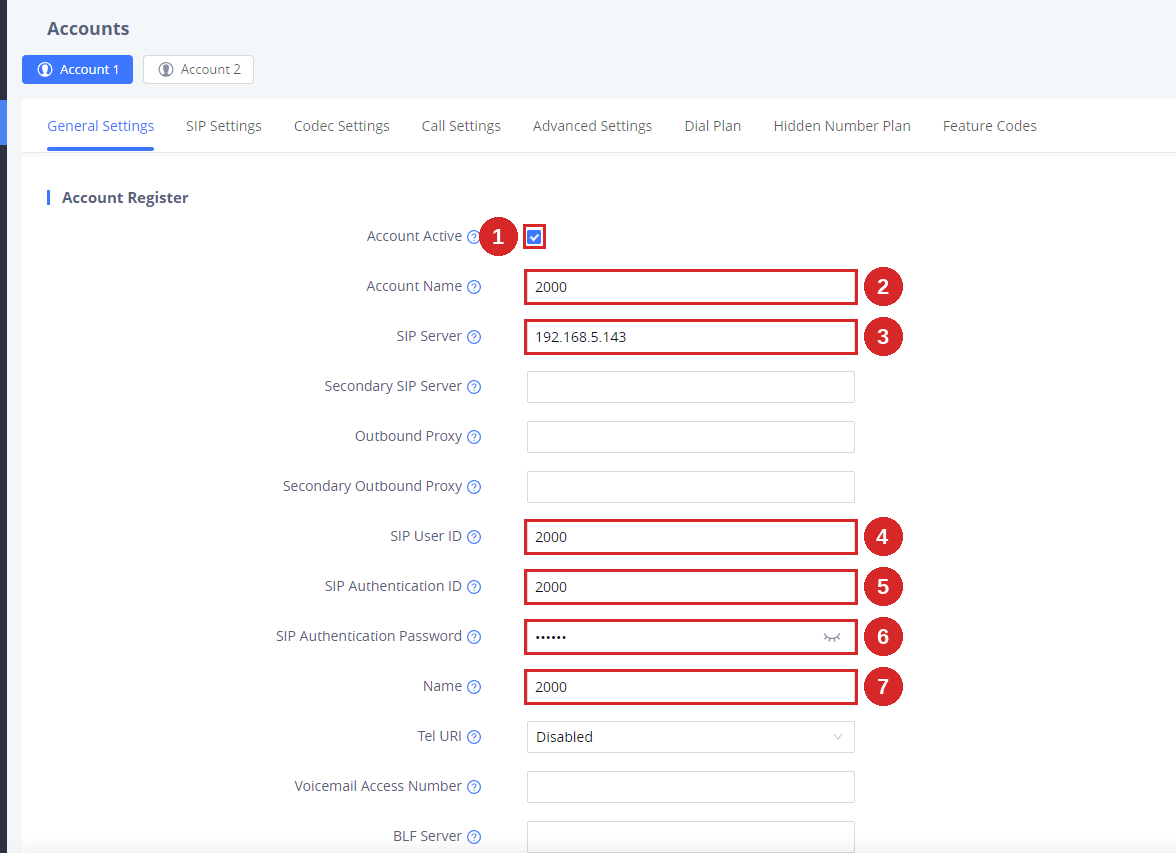
The screenshot shows Grandstream's example values; yours come from the Registration Details card. Leave every other field on the page as it is.
sip: prefix and no port. Leave Outbound Proxy blank.
Click Save and Apply at the bottom of the page.
Configure NAT and STUN
Still under Account 1, open SIP Settings and set:
- SIP Transport — UDP
- NAT Traversal — STUN
- Media NAT Traversal — STUN
- Register Expiration — 3 minutes (180 seconds)
Then go to Network Settings → Advanced Settings and set the STUN Server:
Click Save and Apply. The handset re-registers with the new settings; it doesn't need a reboot.
Verify registration
Within about 30 seconds the handset should register. Check it in three places:
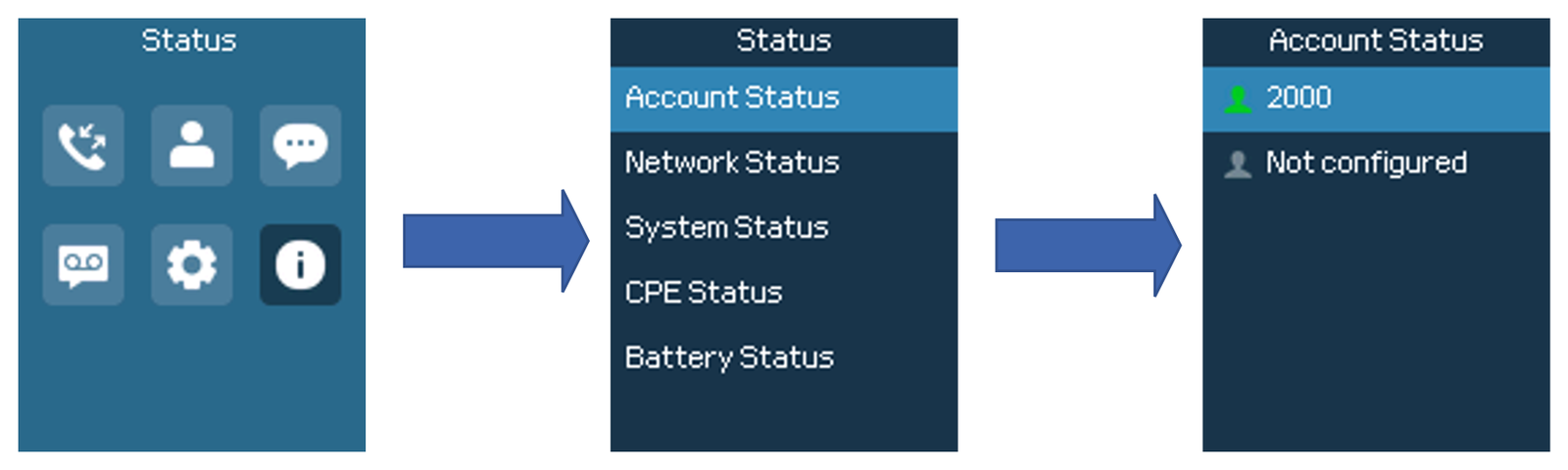
- The handset — Menu → Status → Account Status shows the account with a green icon.
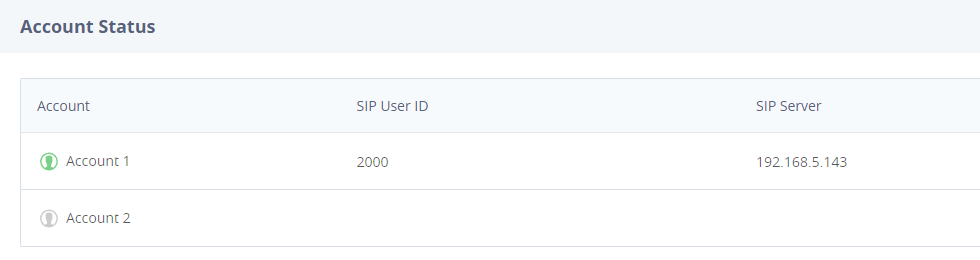
- The web interface — Status → Account Status shows Account 1 with a green icon and the SIP server you entered.
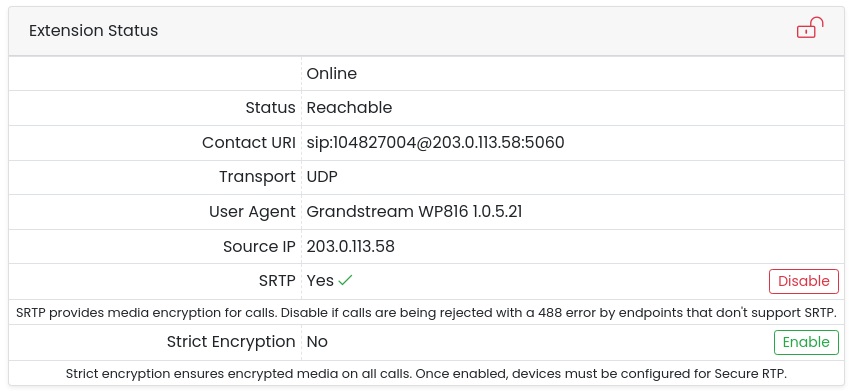
- The portal — the extension's Extension Status card shows Online, with the WP816 as the User Agent.
Finally, dial 99299 from the handset. It's an echo test: if you hear yourself back, audio works in both directions.
Alternative: use the handset menu
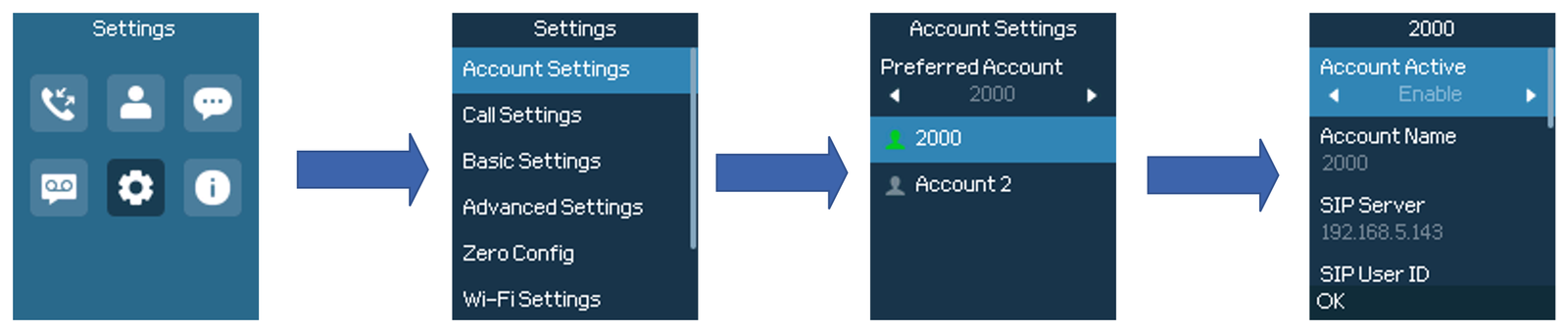
If you don't have a computer handy, the same account details can be entered on the handset itself under Menu → Settings → Account Settings: set Enable Account to Enable, then fill in SIP Server, SIP User ID, SIP Authenticate ID and SIP Authentication Password from the portal, and press OK.
The NAT and STUN settings in the previous section aren't available from the handset menu, so if you set the account up this way and get one-way audio, log in to the web interface and complete Configure NAT and STUN.
Troubleshooting
Handset won't register
- Check the username and password against the portal — the password is case-sensitive and easy to mistype on a keypad.
- Confirm the handset is actually on Wi-Fi (icon at the top of the screen) and can reach the internet.
- Make sure the SIP Server field has no
sip:prefix or port number. - If your router has SIP ALG, turn it off. It rewrites SIP traffic and commonly breaks registration.
One-way audio or no audio
Almost always NAT. Check NAT Traversal and Media NAT Traversal are both STUN, and the STUN server is stun.siptalk.com.au. Your firewall needs UDP 5060 for SIP, UDP 10000–20000 for audio and UDP 3478 for STUN.
Calls drop or the handset keeps re-registering
- Weak Wi-Fi is the usual cause on a cordless handset. Check the signal bars where the calls are dropping, and consider the 2.4 GHz band for range.
- Some Wi-Fi access points put idle clients to sleep. Set Register Expiration to 3 minutes so the handset keeps its connection fresh.
Can't reach the web interface
- Your computer must be on the same network as the handset. Check the IP address again under Status → Network Status; it may have changed.
- If the admin password is lost, the handset can be factory reset from Menu → Settings → Advanced Settings → Factory Reset. You'll need to redo Wi-Fi and the account afterwards.
Handset and web interface images are from Grandstream Networks' WP816/WP826/WP836 User Guide, © Grandstream Networks, Inc.