The Siptalk Web Phone runs an extension as a phone on your computer. You make and take calls through a headset, with no desk phone and no softphone to buy. It installs from your browser as an app, and you connect it to an extension with a one-time key from the portal. There's no charge for it.
This guide sets up the Web Phone for Mei Chen, who has just started at Acme Plumbing and works from a laptop. Once it's running, Using the Web Phone covers calls, extra lines and troubleshooting.
What you need
- A desktop or laptop computer. The Web Phone doesn't run on phones or tablets. Use the Cloud Softphone app there.
- Google Chrome or Microsoft Edge. The Web Phone has to be installed as an app, and these browsers can do that. Firefox on a computer can't install apps at all.
- A headset or a microphone and speakers. The browser asks to use your microphone, and the Web Phone can't make or take calls without it.
- An extension with nothing else on it. The Web Phone takes over the extension's password, and any desk phone or softphone using that extension stops working. Give the Web Phone its own extension. If you don't have a spare one, add a device extension first.
Switch the extension to Web Phone
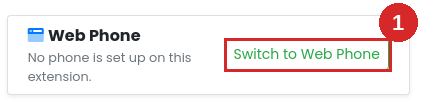
Go to Services → Device Extensions and click [Manage] on the extension. When nothing is set up on it, a Web Phone card appears at the top of the right-hand column. Click [Switch to Web Phone] (1).
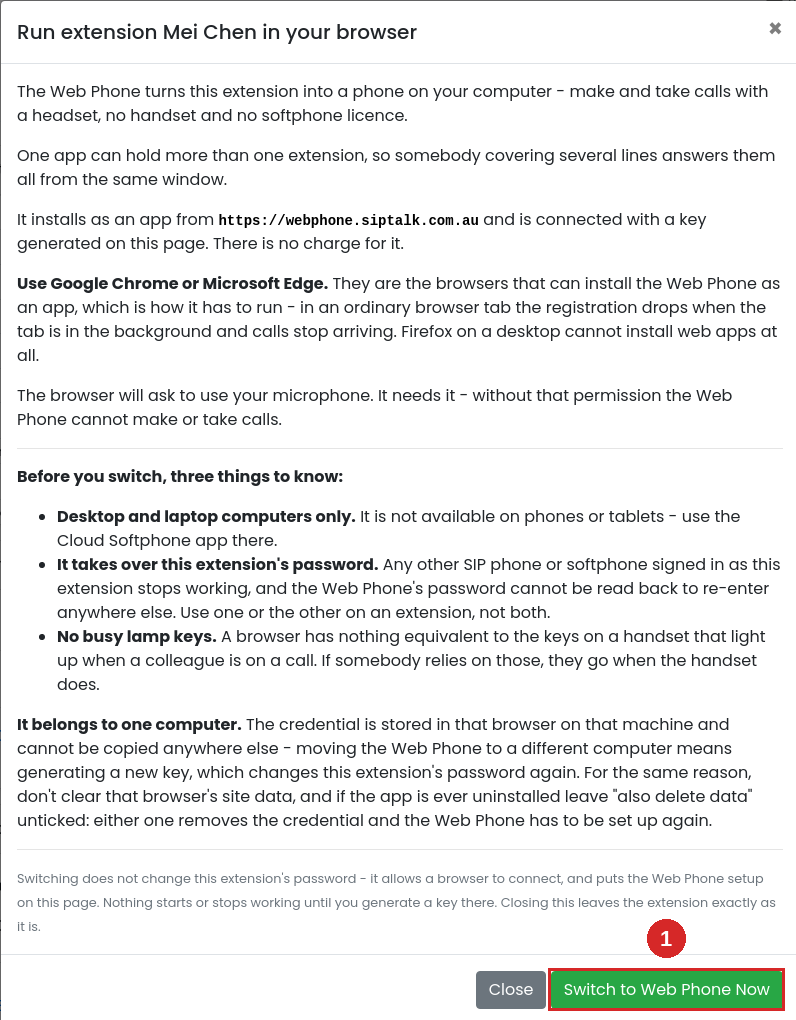
The dialog explains what the Web Phone does. Click [Switch to Web Phone Now] (1). This doesn't change the extension's password, so nothing stops working yet. It allows a browser to connect and puts the Web Phone setup on the page.
Generate a key
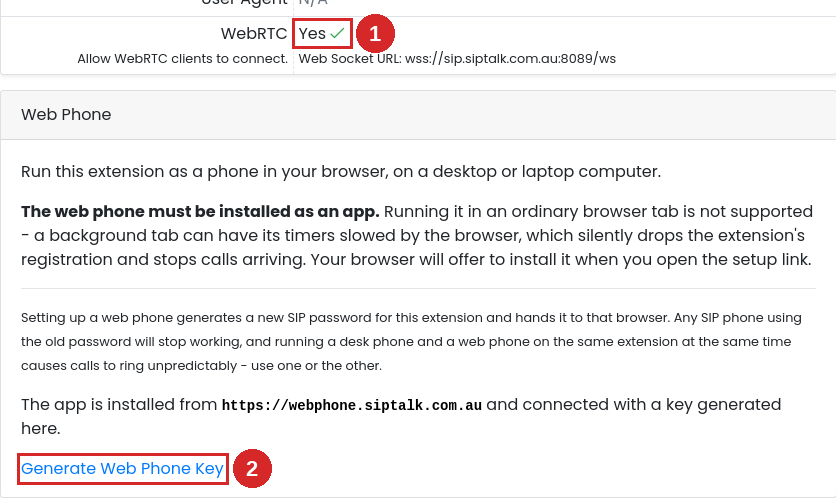
The page comes back with WebRTC set to Yes (1) and a Web Phone card. Click Generate Web Phone Key (2).
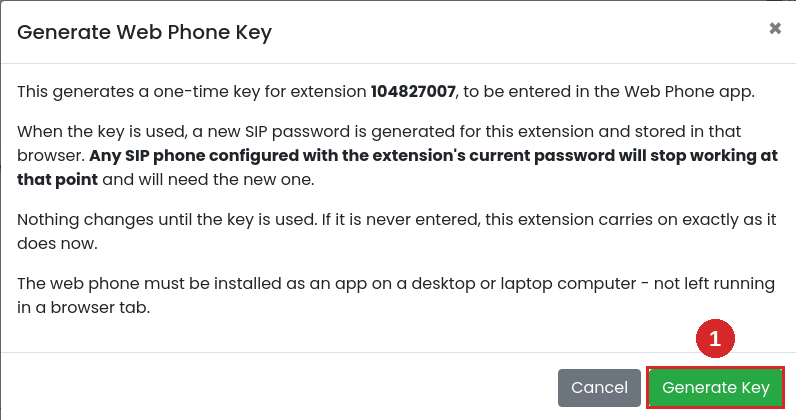
Read the warning and click [Generate Key] (1).
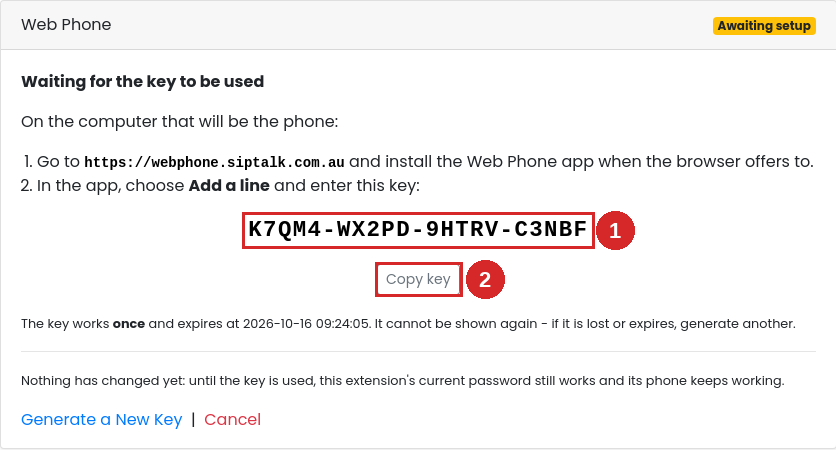
The card shows the key (1), and [Copy key] (2) copies it. Keep this page open until you've entered the key in the app.
Install the app
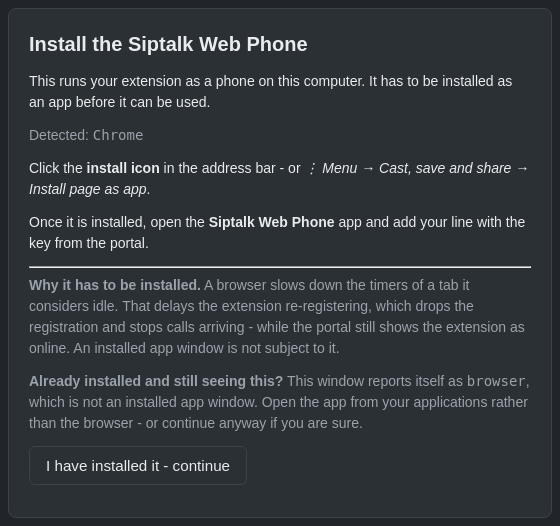
On the computer that will be the phone, open webphone.siptalk.com.au in Chrome or Edge. The page tells you how to install it in the browser you're using:
- Chrome: click the install icon in the address bar, or ⋮ Menu → Cast, save and share → Install page as app.
- Edge: click the install icon in the address bar, or ⋯ Settings and more → Apps → Install this site as an app.
Then open the Siptalk Web Phone app from your applications, the Start menu or the Dock. In Chrome you can also find it at chrome://apps, and in Edge at edge://apps.
Add the line
The app opens on Add a line. Paste or type the key into Web phone key (1) and click [Add this line] (2).
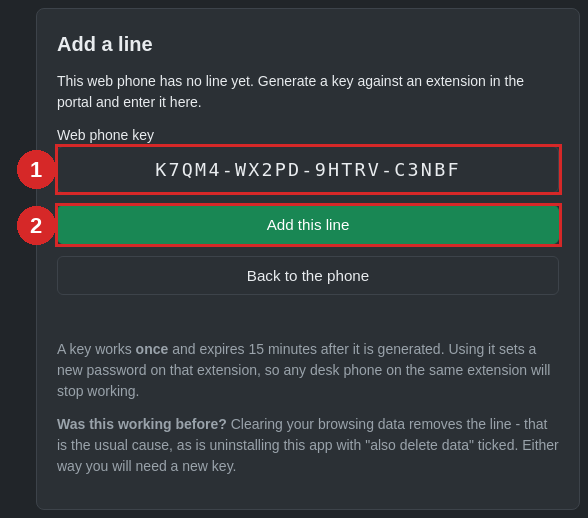
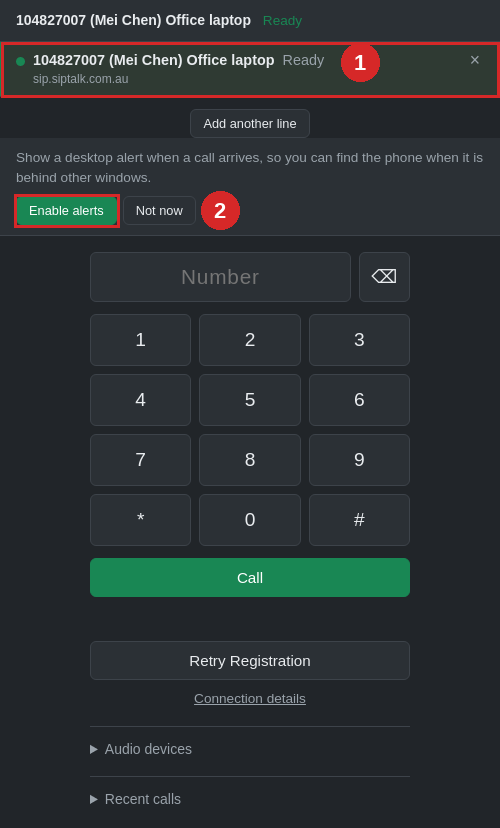
When the browser asks to use your microphone, click Allow. The line shows Ready (1) once it has connected. This can take up to a minute the first time, while the new password reaches the phone system.
Click [Enable alerts] (2) and allow notifications. You then get a desktop alert when a call arrives and the Web Phone is behind other windows.
Check it in the portal
Back on the extension page, Extension Status shows Online with the transport WSS (web phone) (1). The Web Phone card shows Provisioned (2), who set it up and when it was last seen.
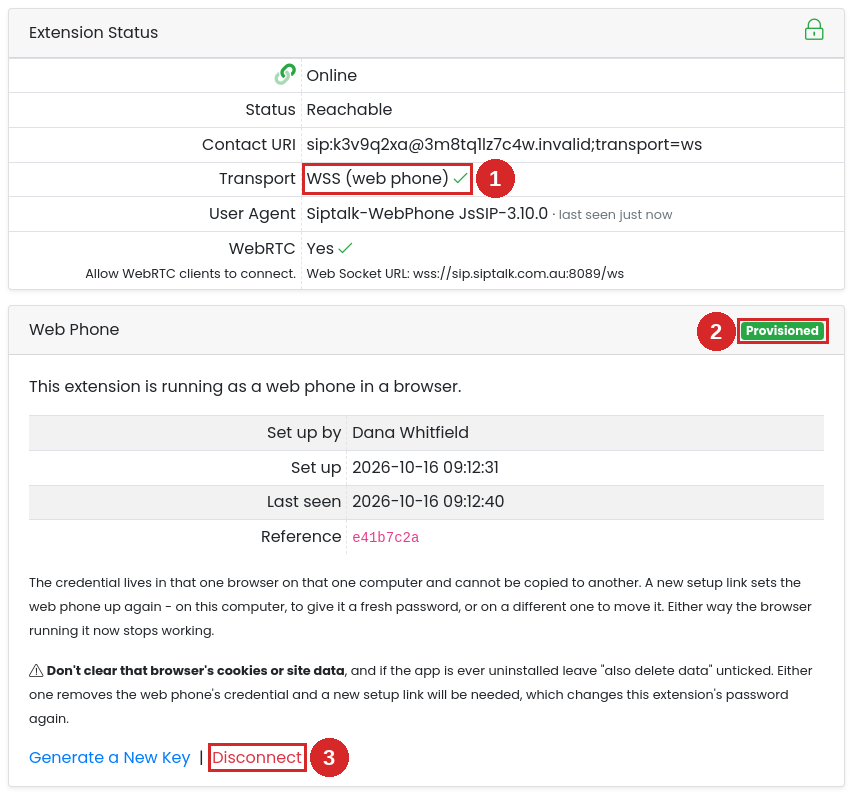
Make a test call to another extension or your mobile to check you can hear and be heard. Disconnect (3) is covered in Using the Web Phone.
Troubleshooting
There's no Switch to Web Phone card
The extension has a phone set up on it, or something registered on it in the past week. The Web Phone needs an extension of its own, so use a new one.
"This extension's codecs cannot carry a browser call"
A browser can only use the ulaw, alaw or g722 codecs. Add at least one of them in the extension's Codecs section, and the key option comes back.
"That key cannot be used"
The key has expired, has already been used, or was mistyped. Keys work once and expire 15 minutes after they're created. Generate a new one from the extension page.
The app keeps showing the install screen
You've opened webphone.siptalk.com.au in a browser tab rather than the installed app. Open the Siptalk Web Phone app from your applications, or from chrome://apps or edge://apps.
The line says "Not accepted - generate a new key"
The phone system didn't accept the new password within 90 seconds. Generate a new key in the portal, then use Add another line in the app to enter it.
"Microphone blocked - calls cannot be made"
The browser was refused access to the microphone. In the browser's site settings, allow the microphone for webphone.siptalk.com.au, then close and reopen the app. In Chrome that's Settings → Privacy and security → Site settings → Microphone, and in Edge Settings → Cookies and site permissions → Microphone. On a Mac, also check System Settings → Privacy & Security → Microphone, and make sure Chrome or Edge is switched on.