The NetComm NF20MESH is a Wi-Fi 6 modem router with a built-in phone port, so an ordinary corded or cordless phone can plug straight into it and work as a Siptalk extension, with no separate adapter. This guide enters a Siptalk extension on the router's Phone page.
Required information
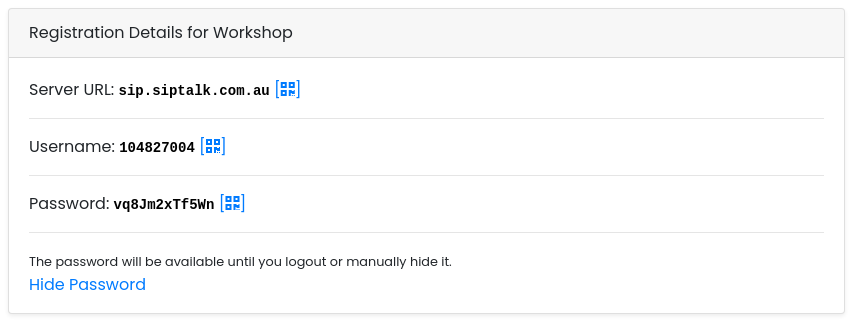
You need three things from the portal:
- Server URL, the server the router registers to
- Username, the extension's username
- Password, the extension's password
Go to Services → Device Extensions, click [Manage] on the extension, and look at the Registration Details card. The password can't be read back once it's set, so click Generate New Password if it isn't showing.
Connect the phone
Plug the phone into the router's phone port. If there are two, use the first one, which is Line 1 in the settings.
Log in to the router
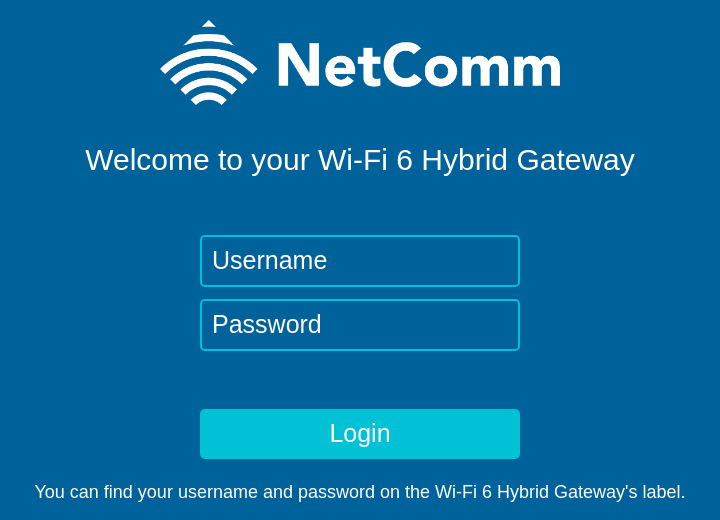
On a computer or phone connected to the router's Wi-Fi or a network port, open a browser and go to http://192.168.20.1. Log in with the username and password printed on the router's label.
192.168.20.1 doesn't open, your router may be using a different address. It's usually the "default gateway" in your computer's network settings.
Enter the extension
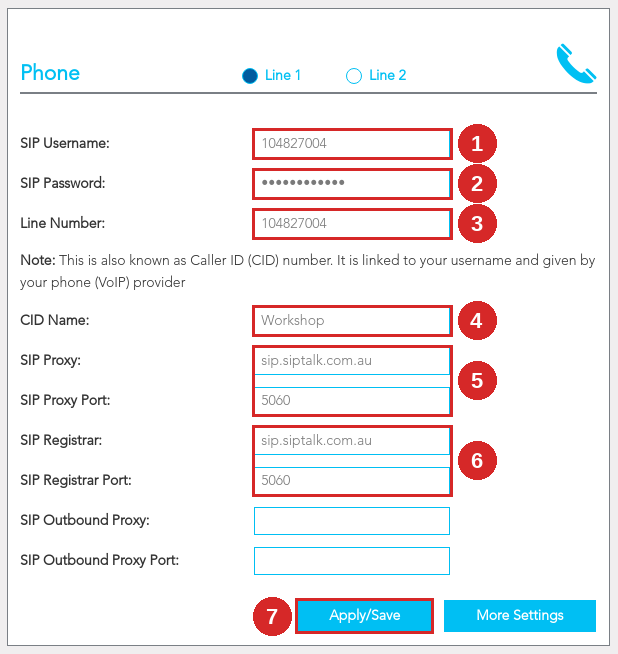
Click Phone in the left-hand menu. Make sure Line 1 is selected at the top, then enter:
- SIP Username: the Username from the portal
- SIP Password: the Password from the portal
- Line Number: the Username again
- CID Name: a name for the line, e.g. the extension's name
- SIP Proxy: the Server URL from the portal, hostname only (no
sip:, no port). SIP Proxy Port:5060 - SIP Registrar: the Server URL again. SIP Registrar Port:
5060 - Leave SIP Outbound Proxy and its port blank, and click [Apply/Save].
Turn off the router's own call features
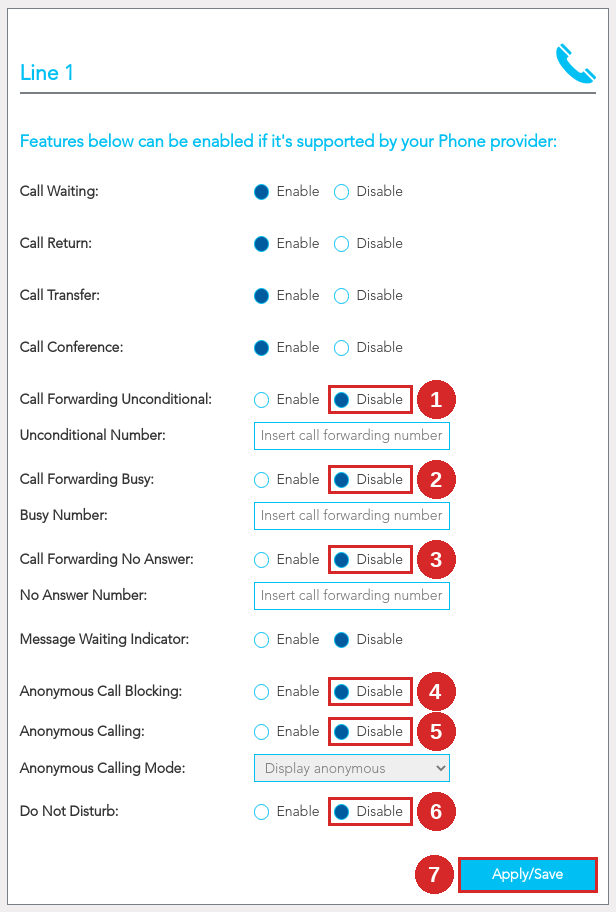
The router has its own versions of call forwarding, do not disturb and caller ID blocking. Leaving them on overrides what you set up in the portal, so turn them off. Click [More Settings] on the Phone page. Under Line 1, set these to Disable:
- Call Forwarding Unconditional
- Call Forwarding Busy
- Call Forwarding No Answer
- Anonymous Call Blocking, so callers with a private number still get through
- Anonymous Calling, so your number shows when you call out
- Do Not Disturb
- Click [Apply/Save].
Leave the other features as they are.
To forward calls or send them to voicemail, use your number's routing in the portal instead. See Routing Profiles Overview.
Set the registration timer
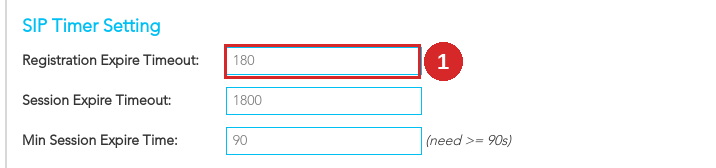
The router re-registers once an hour by default. A shorter timer keeps the line reliably registered. Click Advanced in the left-hand menu, then SIP Settings under Phone.
Under SIP Timer Setting, set Registration Expire Timeout (1) to 180. Leave everything else on this page as it is, and click [Apply] at the bottom.
Check it's registered
Within about 30 seconds the line should register. Check it in three places:
- The phone: pick it up. A dial tone means the line is up.
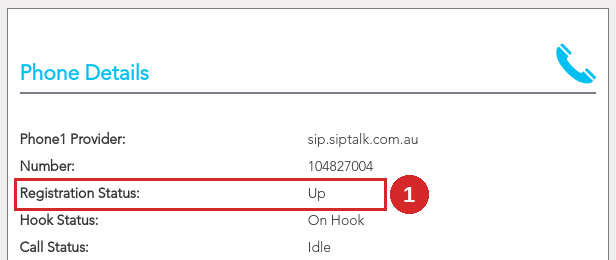
- The router: on Summary, click the Phone icon. Phone Details shows Registration Status: Up (1) for Phone1.
- The portal: the extension's Extension Status card shows Online.
Then make a test call to a mobile, and call your Siptalk number to check the phone rings.
Troubleshooting
No dial tone
- Make sure the phone is plugged into the first phone port, which is Line 1.
- If the line isn't registered, there's no dial tone. See the next item.
Registration Status isn't Up
- Check the SIP Username and SIP Password against the portal. The password is case-sensitive.
- Make sure SIP Proxy and SIP Registrar hold the hostname only, with no
sip:prefix and no port, and both ports are5060. - Check the router is connected to the internet: Summary should show the Internet as connected.
- If you've generated a new password in the portal since setting up the router, enter the new one.
Calls to some numbers don't go through
The router has its own dial plan, under Advanced → Phone → SIP Settings → Digitmap Setting, which decides when you've finished dialling. If calls to extensions or other short numbers don't connect, contact us and we'll help with the right settings.
Outgoing calls show as private
Anonymous Calling is still on. Set it to Disable under More Settings.
Calls forward somewhere unexpected, or the phone never rings
The router's own call forwarding or Do Not Disturb is on. Set them to Disable under More Settings.
Fax machines, EFTPOS terminals and alarm diallers
These need settings this guide doesn't cover. Contact us before connecting one.
Router screenshots are from NetComm's NF20MESH web interface emulator (firmware R6B031), with example Siptalk details filled in.