This guide covers day-to-day use of the Siptalk Web Phone once it's installed and connected. If you haven't set it up yet, start with Set Up the Siptalk Web Phone.
Make a call
Type the number, or click it in with the keypad, and click [Call] or press Enter. Dial other extensions by their short dial code, e.g. 205. The ⌫ button deletes the last digit; hold it down to clear the number.
During a call, the keypad sends tones to the other end, so you can work through phone menus ("press 1 for accounts").
Answer a call
An incoming call shows the caller's number and which line it came in on, with three buttons:
- Answer takes the call.
- Reject sends the caller a busy signal, and the call carries on as your routing says, e.g. to voicemail.
- Silence stops the ringing on your computer but leaves the call ringing for the caller, so you can still answer it.
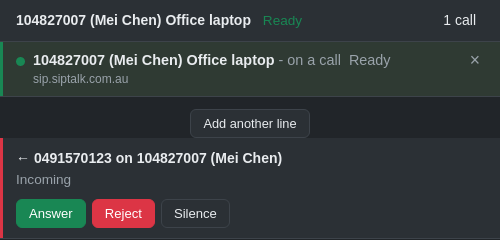
The ring plays through the speaker you've chosen under Audio devices. If the Web Phone is behind other windows, you also get a desktop alert, a flashing window title and a dot on its icon in the Dock or taskbar.
During a call
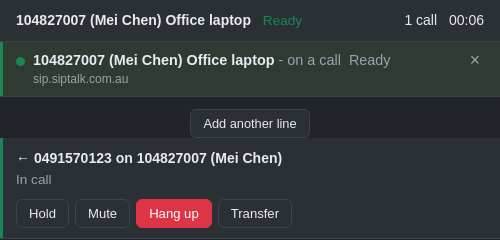
The call shows a timer at the top right, and Hold, Mute, Hang up and Transfer buttons. Mute stops the other person hearing you; Hold puts them on hold. Transfer passes the call on, and is covered in Transfer a Call on the Web Phone.
A second call
If another call arrives while you're on one, it rings alongside it. Answering it puts the first call on hold automatically, and the held call shows Resume. Clicking Resume swaps back, holding the other one. Dialling out while on a call holds the current call the same way.
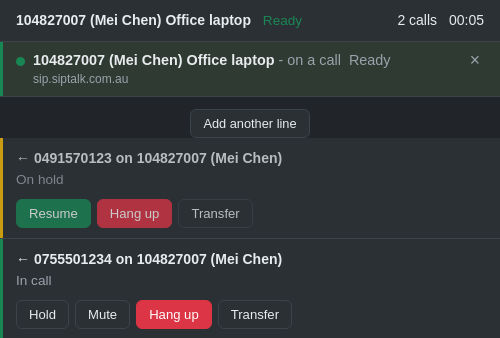
The Web Phone handles up to three calls at once: one active and two on hold. A fourth caller gets a busy signal and goes wherever your routing sends a busy extension, such as voicemail.
Answer more than one extension
One Web Phone can hold several extensions, so someone covering a second line answers both from the same window. Generate a key on the other extension as in Set Up the Siptalk Web Phone, click [Add another line] in the app, and enter it. Each extension still needs to be set up for the Web Phone only, with no desk phone on it.
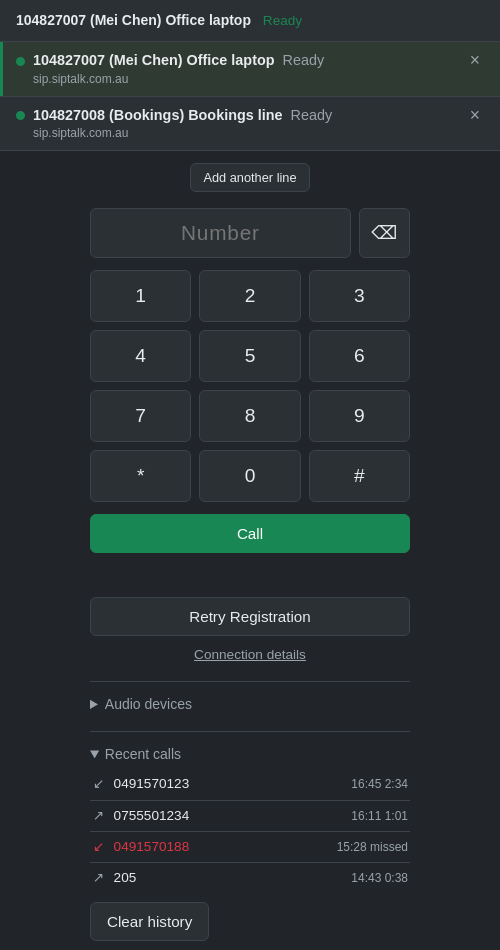
- Incoming calls show which line they came in on.
- Outgoing calls go out on the highlighted line. Click a line to choose it.
- The × on a line removes it from this computer and disconnects it in the portal. Adding it back needs a new key.
Recent calls
Open Recent calls to see the last 20 calls on this computer, newest first, with missed calls in red. Clicking an entry puts its number in the number field, ready to call back. The list is kept on this computer only. For the full record across all your phones, use Reporting → Call Records in the portal.
Audio devices
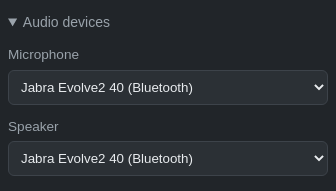
Open Audio devices to choose the microphone and speaker. Pick your headset for both so the ring and call audio come through it rather than the computer's speakers.
Desktop alerts
When a call arrives and the Web Phone is behind other windows, a desktop alert pops up. If you didn't click [Enable alerts] during setup, the prompt stays at the top of the app until you do. To check alerts are working, open Connection details and click [Test desktop alert].
If the test doesn't show an alert:
- Check Notification Centre. Click the clock on a Mac, or the notification icon on Windows. If the alert is there, it's being delivered and you need to change the alert style in your system's notification settings. If it isn't, allow notifications for the app in system settings. The installed app has its own entry, separate from the browser's.
- Focus and Do Not Disturb hide alerts. macOS Focus and Windows Focus Assist send alerts straight to Notification Centre. On a Mac, add Google Chrome Helper to the Focus profile's allowed apps; searching for "Siptalk" won't find it.
The flashing window title and the dot on the app icon aren't notifications, so they keep working whatever your alert settings.
Move the Web Phone to another computer
The Web Phone's password lives in one browser on one computer and can't be copied. To move it, set it up again on the new computer: on the extension page, click Generate a New Key and follow Install the app and Add the line. Using the key gives the extension a new password, so the old computer stops working.
Disconnect the Web Phone
To stop using the Web Phone on an extension, click Disconnect on the extension's Web Phone card, then [Disconnect]. The app shows the line as Disconnected in the portal the next time it checks in. Removing the line in the app with × or Remove this line does the same thing.
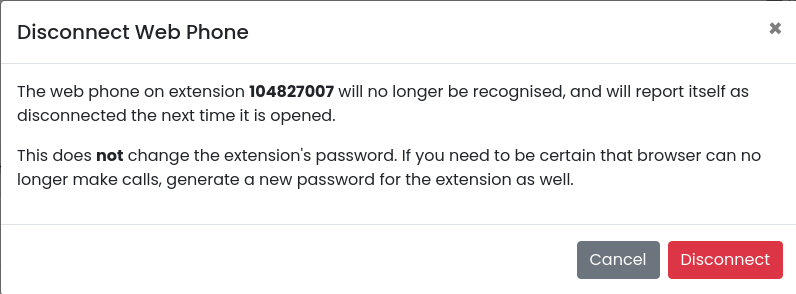
To put a desk phone or softphone on the extension instead, disconnect the Web Phone first. The extension page then shows a SIP Phone card. Click [Switch to SIP], then generate a new password from Registration Details and set the phone up with it.
Troubleshooting
Calls stop arriving
- Check you're using the installed app, not webphone.siptalk.com.au in a browser tab. A tab loses its connection when it's in the background.
- Check the line says Ready. If it doesn't, click [Retry Registration].
- Keep the computer awake. When it sleeps, the Web Phone can't take calls, and they go wherever your routing sends an unanswered extension.
The line has gone and the app asks for a key
The browser's data was cleared, or the app was uninstalled with "also delete data" ticked. Either removes the line. Generate a new key on the extension page and add the line again.
The line says "Disconnected in the portal"
Someone disconnected the Web Phone, generated a new key for it on another computer, generated a new password for the extension, or deactivated it. Check the extension's Web Phone card. To use it on this computer again, generate a new key.
The call connects but there's no sound
- Check Audio devices has the right microphone and speaker.
- Check the browser still has permission to use the microphone.
- If it still fails, contact us with diagnostics (below).
Sending us diagnostics
Click Connection details at the bottom of the app. It shows the line's connection settings and what happened when it connected.
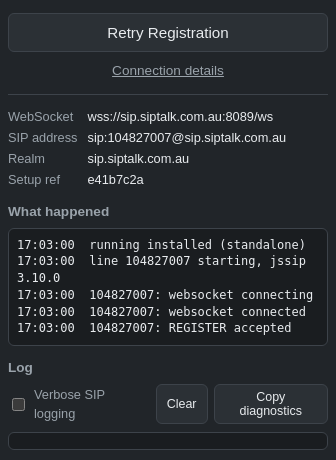
- Tick Verbose SIP logging.
- Click [Retry Registration], then make the call that fails.
- Click [Copy diagnostics] and paste the result into an email to support@siptalk.com.au, or a message from the portal's Send a Message button.
The log contains your extension number but not your password.