Siptalk is a prepaid service: your charges come out of the balance on your account. Auto payment tops that balance up from a card whenever it runs low, so your services never stop for lack of credit. This guide adds a card and sets it up.
How auto payment works
- You choose a low balance trigger (say $20) and a payment amount (say $50).
- The system checks your balance regularly. When it drops below the trigger, it charges the payment amount to your card and adds it to your balance.
- Card details are stored by our payment provider, not by Siptalk; the portal keeps only a token and the last digits for display.
Add a card
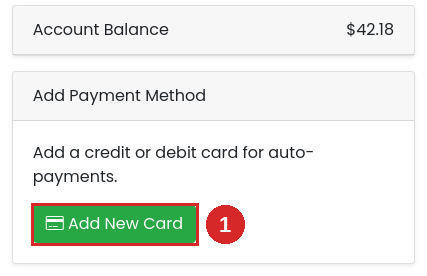
Go to Accounts → Auto Payments. Your current balance is shown top right. In the Add Payment Method card, click [Add New Card].
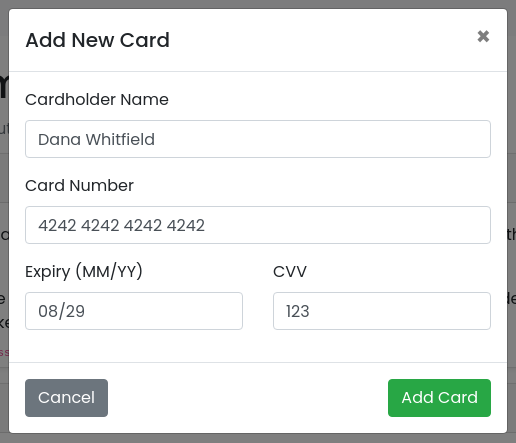
Enter the cardholder name, card number, expiry and CVV, and click [Add Card]. Credit and debit cards are both accepted.
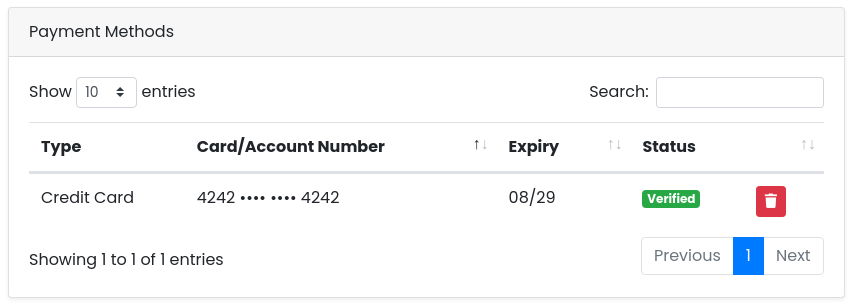
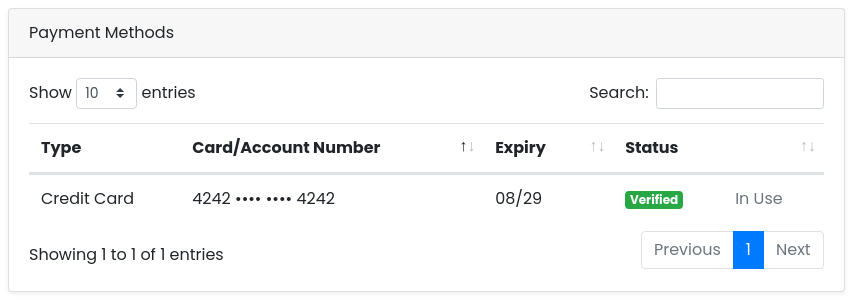
Your bank may then ask you to confirm the card — usually a code sent by SMS or a prompt in your banking app (this is 3-D Secure). Complete it and you're returned to the portal. Adding a card doesn't charge it. The card appears under Payment Methods as Verified.
Set up auto payment
In the Auto Payment Details card:
- Low Balance Trigger — the balance at which a top-up happens.
- Payment Amount — how much to charge the card and add to your balance each time.
- Payment Method — the card to charge. Only verified cards are listed.
- Click [Update Auto Payment].
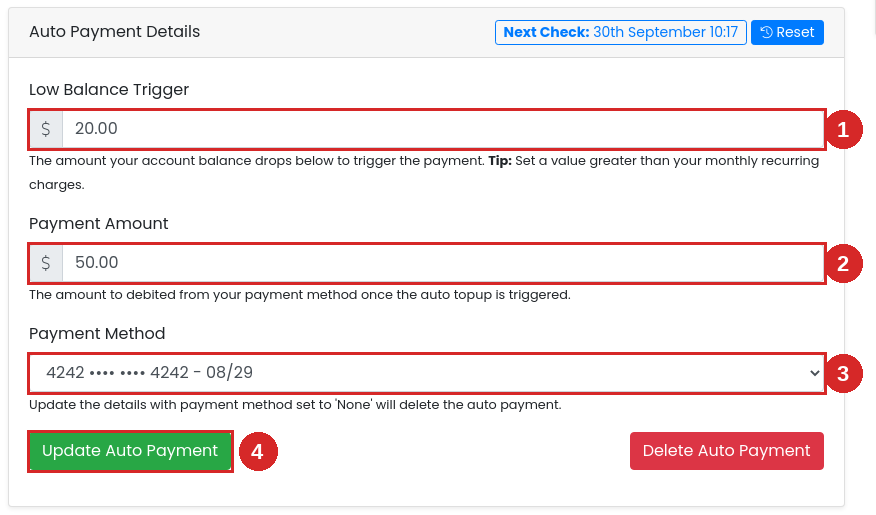
The header now shows Next Check — when the balance will next be looked at — and the card in Payment Methods is marked In Use.
Choosing the amounts
- Trigger above your monthly charges. Monthly charges for numbers, extensions and features come out in one go, so set the trigger higher than your total monthly charges. That way a top-up happens before they're due, not after the balance has already gone to zero.
- Payment amount of a month or more of usage. Your invoices in the portal show what a typical month costs. Topping up by at least that means fewer, larger payments.
- The minimum payment is $5.
Change, replace or stop it
- Change the amounts: edit the fields and click [Update Auto Payment].
- Replace a card (new card, or the old one is expiring): add the new card, select it in Payment Method and update. The old card is no longer In Use and can then be deleted with its bin icon. A card that's in use can't be deleted.
- Stop auto payment: click [Delete Auto Payment], or set Payment Method to None and update. Your card stays saved; you can pay manually from Accounts → Payments.
Troubleshooting
The card won't add
- Check the number, expiry and CVV, and that the name matches the card.
- If your bank's confirmation step timed out or was cancelled, try again and complete it.
- Some cards are declined for online use by the issuing bank; ask your bank, or try another card.
My card isn't in the Payment Method list
Only verified cards are offered. Check its status in Payment Methods; a card marked Blocked can't be used — add it again or use another card.
The balance went low but no payment happened
- The balance is checked periodically, not instantly — see Next Check. A top-up follows the next check after the balance drops below the trigger.
- If the card was declined (expired, insufficient funds), the top-up fails. Update the card and check the settings are saved.
- If your balance is already below zero, top up manually from Accounts → Payments to restore service straight away.
Having trouble paying? Financial hardship assistance is available free of charge — see our Financial Hardship Policy.