What deactivation means
Extensions aren't cancelled the way phone numbers are — they're deactivated. Once an extension is deactivated:
- It no longer accepts registrations, so devices can't connect to it
- It can't make or receive calls
- It moves from Active Extensions to the Inactive Extensions list
Before you start
Disconnect the device first. Power off the handset, or remove the account from your softphone app, before deactivating the extension. The portal checks for a live registration and will not let you deactivate while a device is still connected — see below for why.
Also check:
- Call routing — if the extension is in a ring group or routing profile, calls to it will stop. Remove it from your routing first so callers don't hit a dead leg. See Routing Profiles Overview.
- Cancelling your last number too? If you're closing the account down, note that your last remaining phone number can't be cancelled while extensions are still active — deactivate extensions first, then cancel the number.
Find the extension
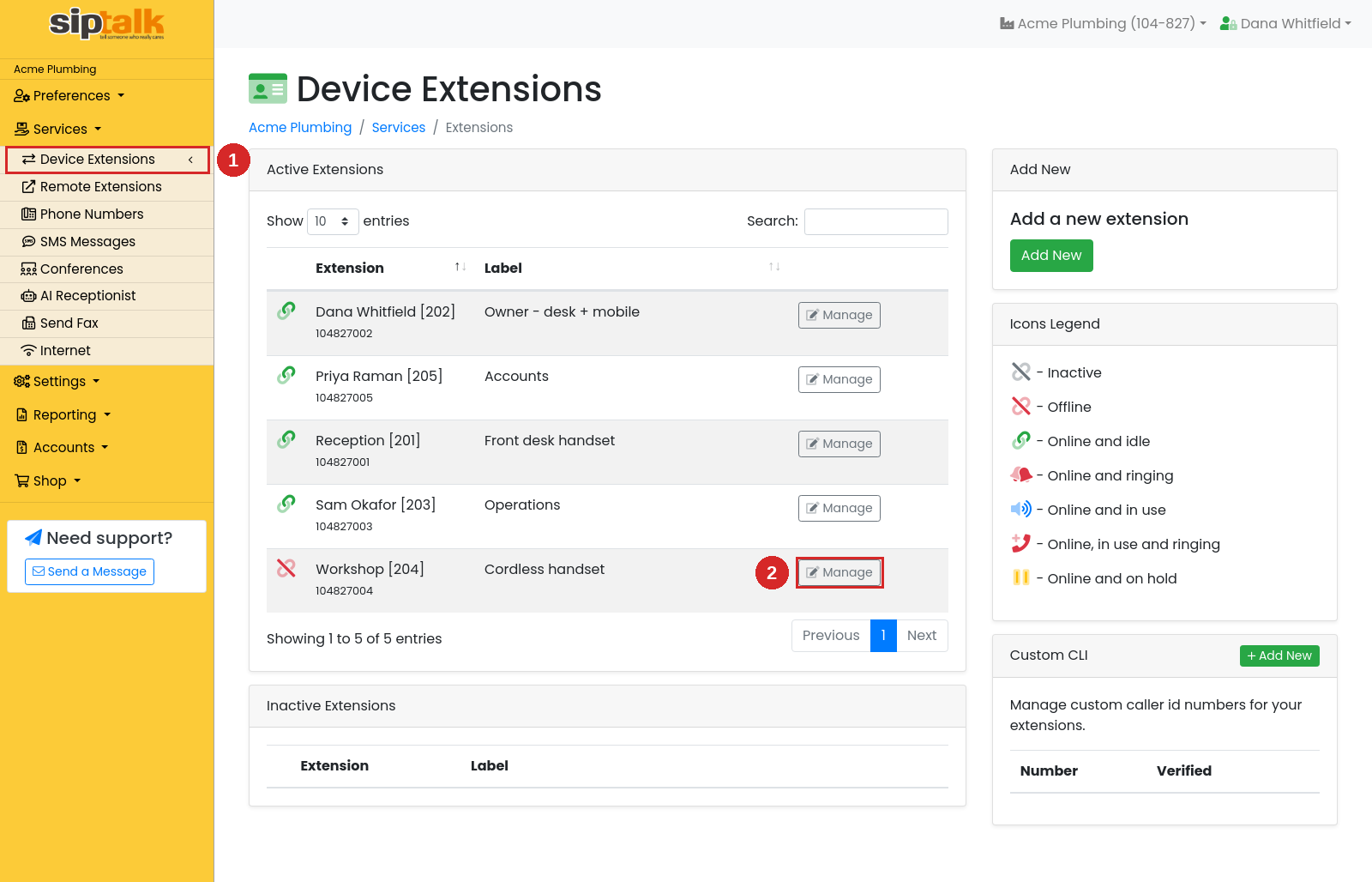
Go to Services → Device Extensions and click [Manage] on the extension you want to deactivate.
Deactivate the extension
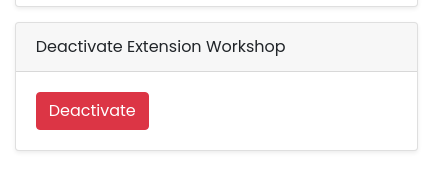
Scroll to the bottom of the right-hand column to the Deactivate Extension card and click [Deactivate].
The portal first checks whether a device is still registered to the extension. If nothing is connected, you'll be asked to confirm:
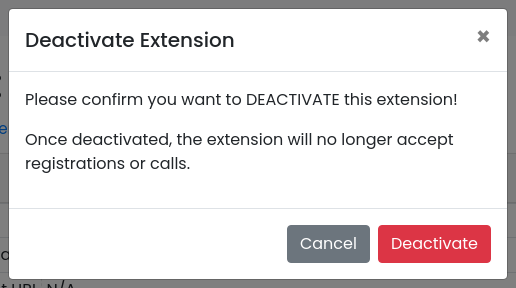
Click [Deactivate] to confirm.
If a device is still registered
If a device is still connected to the extension, deactivation is blocked and the portal shows you the device's details:
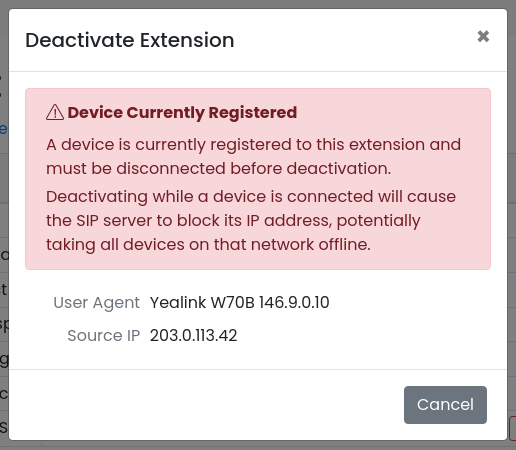
Use the User Agent and Source IP shown to identify which device is still connected. Power it off or remove the account from the softphone app, wait a minute or two for the registration to expire, then try again.
After deactivation
- The extension appears under Inactive Extensions at the bottom of the Device Extensions page
- Internal calls to its extension number no longer connect
- Any ring group or routing profile that still lists it will simply skip it — but it's tidier to remove it from routing yourself
Troubleshooting
The blocked message won't go away
The registration has to expire before the check passes — that can take a few minutes after you power the device off. If it persists, check the Source IP shown: the device may not be where you think it is (for example, a softphone still signed in on someone's mobile).
"Unable to verify device status"
The portal couldn't reach the status database to run the registration check. Try again shortly, and only proceed once you've confirmed yourself that no device is connected.
Deactivated the wrong extension?
Contact support via Need support? → Send a Message in the portal and we'll help you get it back up.