Your weekly schedules handle the normal week, but they don't know about Christmas. A Holiday Override is a schedule with a start date and an end date instead of days of the week. While the dates are current it takes over the number's routing, and when they pass, your normal schedules resume on their own.
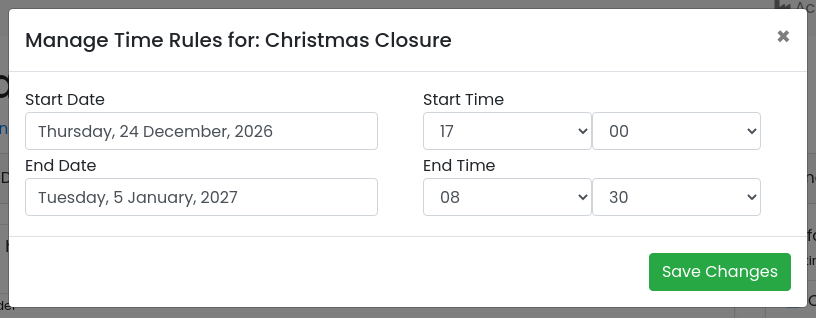
This guide sets one up for a Christmas closure: from 5pm on Christmas Eve until 8:30am on the first working day of January, callers hear a closure announcement.
What an override does
- It wins while it's current. Between its start and end, calls follow the profiles attached to the override — not Office Hours, not Default — at any time of day.
- It switches itself off. After the end date and time, routing goes back to your weekly schedules and Default with no action from you.
- It holds one date range. Each override covers a single period. For the next holiday you update its dates, or add another override.
Before you start
Decide what callers should get during the closure and have that profile ready in the number's Available Routing Profiles list. For a holiday that's usually an Announcement profile playing a closure message ("We're closed until Tuesday 5 January..."), on its own or followed by a voicemail profile. See Routing Profiles Overview for creating profiles.
Then open the number: Services → Phone Numbers and click [Manage] on the number.
Add the override schedule
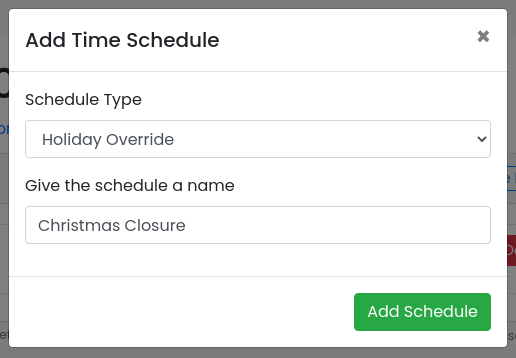
In the Time Schedules card on the right, click [+ Add]. Set Schedule Type to Holiday Override, give it a name, and click [Add Schedule].
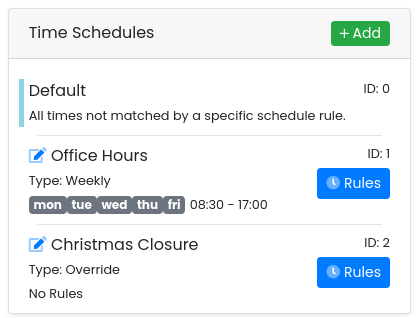
The new schedule appears in the card as Type: Override with No Rules. It does nothing yet — it needs dates.
Set the dates
Click [Rules] on the override. Because it's an override, the dialog asks for a period rather than days of the week: pick the Start Date and Start Time, the End Date and End Time, then click [Save Changes].
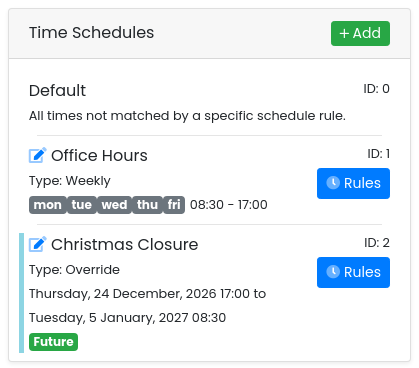
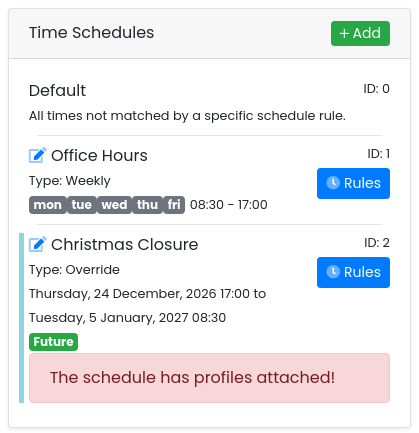
The card now shows the period and a status badge: Future until the start date, Current while the override is in charge, and Expired once it's over.
Attach the holiday profile
Profiles attach to whichever schedule is selected at the top of the left column, so select the override first:
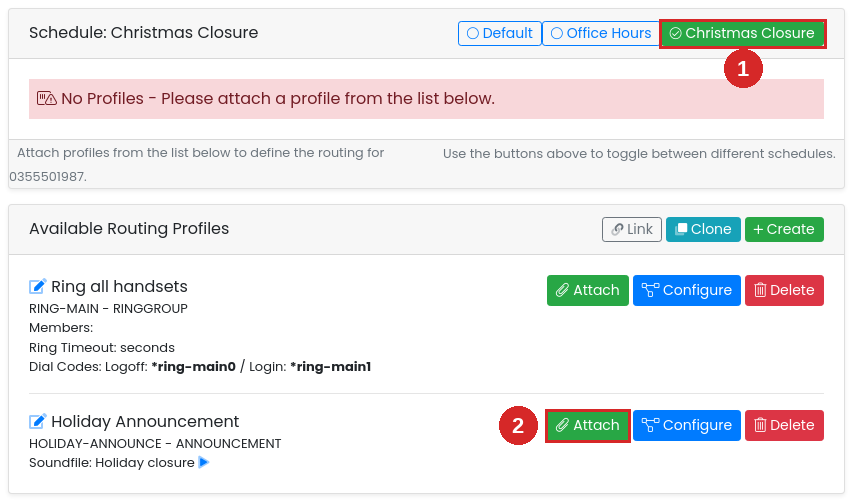
- Click the Christmas Closure button in the Schedule header. The heading changes to "Schedule: Christmas Closure" and, because nothing is attached yet, it shows No Profiles.
- In Available Routing Profiles, click [Attach] on the holiday announcement profile.
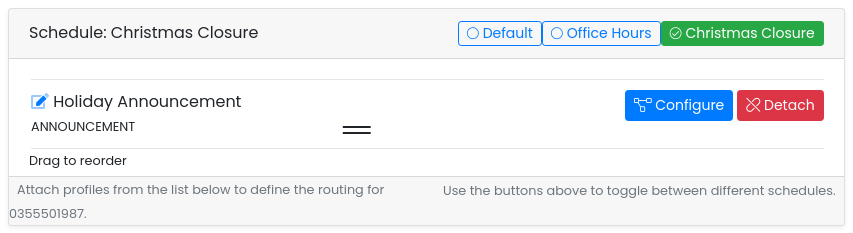
The profile now sits under the override. If callers should be able to leave a message after the announcement, attach a voicemail profile as well; the system works through the list top to bottom, and you can drag to reorder.
Your Default and Office Hours schedules are untouched — click their buttons to confirm their profiles are still there.
What callers get
Until 5pm on 24 December: normal routing. Office Hours during the day, Default outside it.
From 5pm on 24 December to 8:30am on 5 January: the override is Current. Every call, day or night, hears the closure announcement (and then voicemail, if you attached one).
From 8:30am on 5 January: the override is Expired and ignored. Office Hours takes the call, exactly as it did before the break.
Reusing it for the next holiday
An expired override is harmless, so the simplest habit is to keep one schedule and update it each time. Rename it to something general like "Holiday Closure" (the edit icon next to its name), leave the announcement attached, and when the next public holiday comes around just click [Rules] and set the new dates — the announcement is ready to go.
If you'd rather delete it, detach its profiles first; the portal won't delete a schedule that still has profiles attached:
Troubleshooting
Callers are hearing the holiday message and we're open
- Check the badge. If the override is Current, the end date or time is wrong — fix it under [Rules].
- If it isn't Current, the announcement was probably attached to the wrong schedule. Select Default and Office Hours in turn and detach it from wherever it doesn't belong.
The holiday message isn't playing
- The override shows Future: it hasn't started yet. Check the start date and time, and the number's timezone.
- The override shows No Rules: dates were never saved. Click [Rules] and set them.
- The Schedule panel shows No Profiles with the override selected: nothing is attached, so the override has nothing to play.
Several numbers need the same closure
Schedules belong to a number, so each number needs its own override. If your numbers are linked to a main number (the Link button in Available Routing Profiles), they already follow its routing, and one override on the main number covers them all.