Multifactor authentication (MFA) adds a second step to signing in: after your password, you enter a six-digit code from an authenticator app on your phone. Someone who learns your password still can't get in without your phone. It's set up per user, from your own profile, and takes about two minutes.
What MFA does
- It protects your login, and everything your login can reach — numbers, call recordings, billing and payment methods.
- It's per user. Turning it on for yourself doesn't affect other users on your organisation; each person sets up their own.
- It unlocks international calling settings. The International Calling preferences, where you choose which overseas destinations can be called, only appear for users with MFA switched on.
Before you start
Install an authenticator app on your phone. Any app that supports standard time-based codes (TOTP) works — for example Google Authenticator, Microsoft Authenticator, Authy or a password manager such as 1Password.
Then open your profile: click the user icon at the top right of the portal and choose Profile. While MFA is off the icon is a red open padlock; once it's on, a green closed one.
Scan and verify
- In the Multifactor Authentication card, open your authenticator app, add a new account and scan the QR code. The account appears in the app as Siptalk with your email address.
- Type the six-digit code the app now shows into Enter TOTP code to verify.
- Click [Verify TOTP].
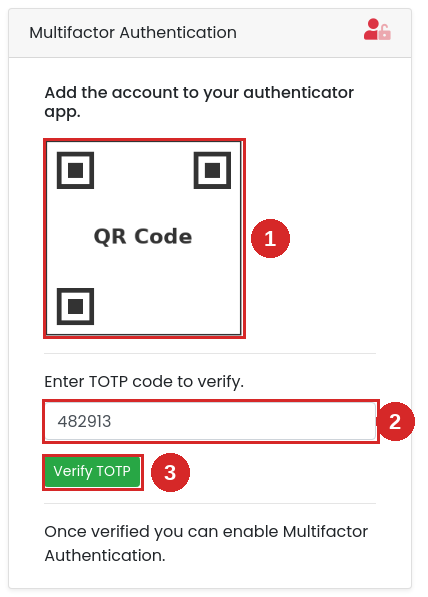
The codes change every 30 seconds; if one expires while you're typing, use the next.
Switch it on
Verifying links your app to your login but doesn't turn MFA on yet. The card now shows MFA TOTP Verified. Set MFA Status to Active and click [Update MFA Status].
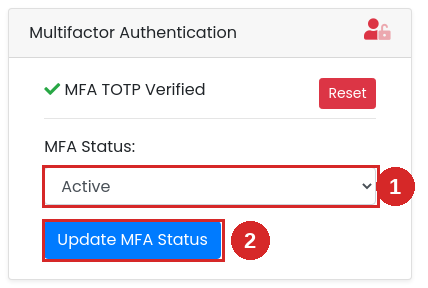
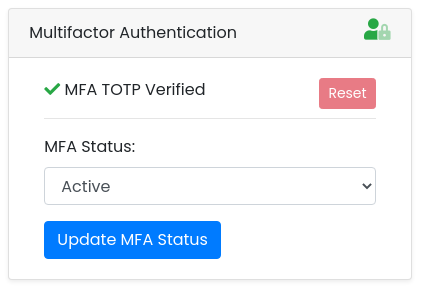
The padlock in the card header and at the top right turns green. The Reset button is greyed out while MFA is active, so it can't be undone by accident.
Signing in with MFA
From now on, after you enter your email and password the portal asks for a code. Open your authenticator app, type the current code for Siptalk and click [Verify TOTP] (or press Enter). You're asked once per session; your session lasts as long as the Session Timeout set in your profile — 7 days by default.
New phone or turning it off
To move MFA to a new phone, or turn it off:
- In your profile, set MFA Status to Inactive and click [Update MFA Status].
- Click [Reset]. This unlinks your old authenticator app.
- To set it up again, a new QR code appears — scan it with the new phone and follow Scan and verify and Switch it on again.
Do this before wiping or handing back the old phone, while you can still sign in.
Troubleshooting
"Verification Failed" when I click Verify TOTP
- The page was reloaded after you scanned, so your app holds an old code. Delete the Siptalk entry from the app and scan the QR code that's showing now.
- Your phone's clock is wrong. Codes are based on the time, so set the phone to update its date and time automatically.
- The code expired while you typed it. Wait for the next one.
I've lost my phone and can't sign in
Without the authenticator app you can't complete sign-in, and the reset is only available once you're signed in. Email support@siptalk.com.au from the email address on your login and we'll verify your identity and reset MFA for you.
The Reset button is greyed out
MFA is active. Set MFA Status to Inactive and update first; Reset then becomes available.
I can't find International Calling in Preferences
It only appears for users with MFA active. Switch MFA on and it appears from the next page you load.