An IVR (auto attendant) answers the call with a recorded menu — "press 1 for bookings, 2 if you have a job in progress, 3 to leave a message" — and sends the caller wherever they choose. This guide builds one for Acme Plumbing's main number, with three options.
How an IVR works
An IVR is a routing profile on a phone number, like a ring group or voicemail. What makes it different is that each key on the caller's phone points to other routing profiles on the same number. So an IVR is built from the outside in: first the destinations (ring groups, voicemail, an external number), then the greeting that describes them, then the IVR itself that ties keys to destinations.
Plan the menu
Decide the options before you touch the portal. Keep it short: three or four options is plenty, and callers stop listening after that. For Acme:
- Press 1 — new bookings and quotes → rings the office handset
- Press 2 — jobs in progress → rings every handset
- Press 3 — leave a message → voicemail to email
Write the greeting to match, and put the most common option first.
Make the greeting
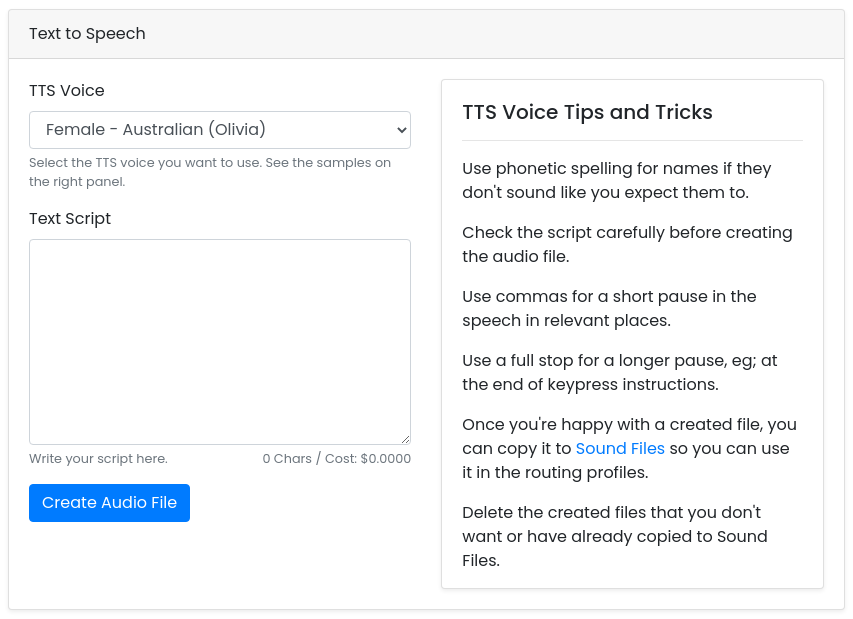
The IVR plays an Instruction sound file — your menu. The quickest way to make one is text-to-speech: go to Settings → TTS Voices, choose a voice, type the script and click [Create Audio File]. The cost per character is shown as you type; a typical menu costs a cent or two.
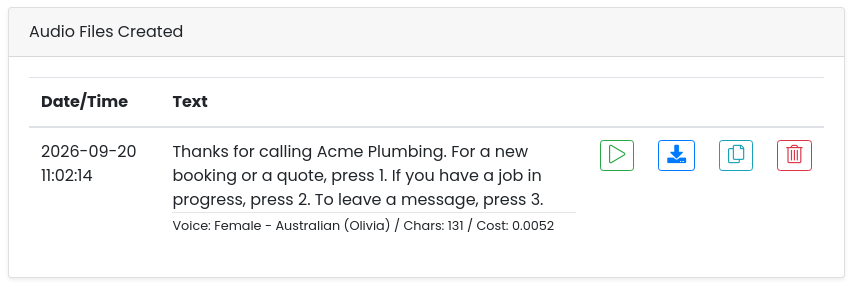
Listen to it with the play button. If a name is mispronounced, spell it phonetically and create it again. Use commas for short pauses and a full stop after each option. When you're happy, click the copy icon on the file to copy it to Sound Files — that's what makes it selectable in the IVR.
Create the destinations
Every key needs somewhere to send the call, and it must exist before you configure the IVR. Go to Services → Phone Numbers, click [Manage] on the number, and create what the menu needs — for Acme, a Bookings ring group with the office extension in it, a Messages voicemail profile, plus the existing "Ring all handsets" group. See Ring Group & Voicemail Setup for those; an external number or the AI receptionist work as destinations too.
Create the IVR profile
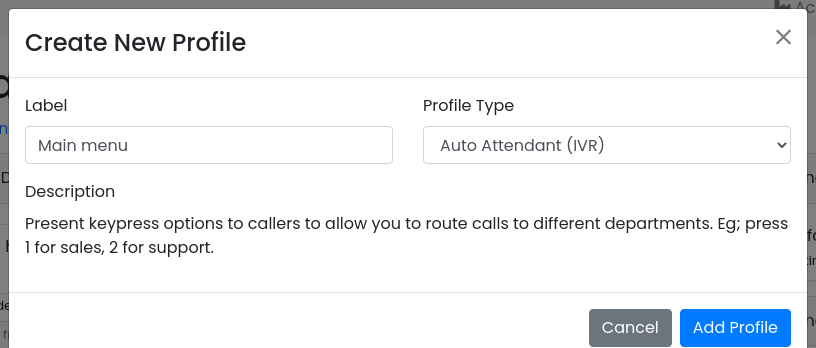
In Available Routing Profiles, click [+ Create], give it a label, set Profile Type to Auto Attendant (IVR), and click [Add Profile].
Then click [Configure] on the new profile.
Configure it
Sounds and timing
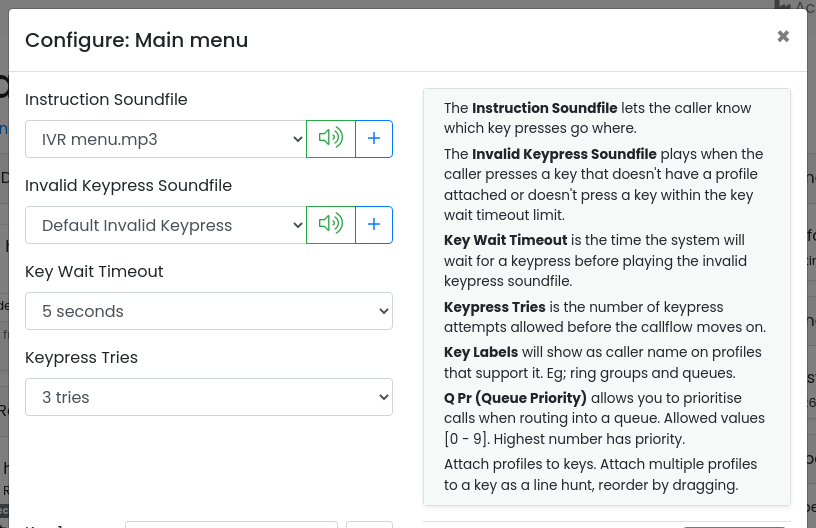
- Instruction Soundfile — your greeting. Pick the file you made.
- Invalid Keypress Soundfile — played when the caller presses a key with nothing on it, or presses nothing. The default ("that's not a valid option") is fine for most.
- Key Wait Timeout — how long to wait for a key after the greeting: 5 seconds suits most menus.
- Keypress Tries — how many invalid or missed attempts before the IVR gives up and the call moves to the next profile in the schedule. 3 is a sensible default.
Keys
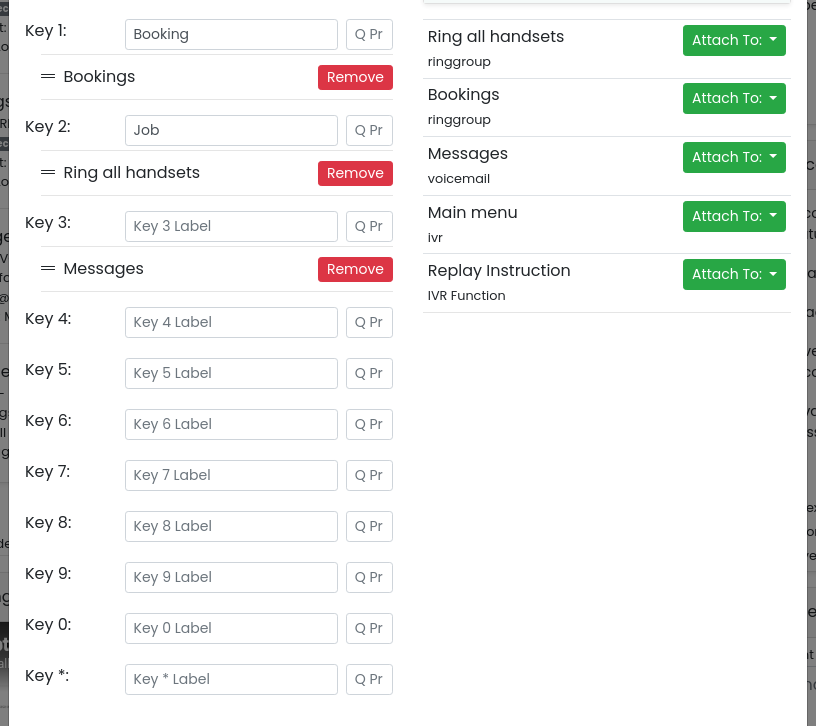
The right-hand list shows every profile on the number. For each, open its [Attach To:] dropdown and click the key; the profile appears under that key on the left, shown by its own profile label. Fill in the keys your greeting promises:
- Attach Bookings to key 1, Ring all handsets to key 2, Messages to key 3.
- The Key Label boxes are optional notes for your own reference in the portal; they aren't shown to the caller or on the ringing handset.
- Leave Q Pr blank unless the key goes to a call queue; it sets that caller's priority in the queue.
Two useful extras: attaching Replay Instruction to a key (usually * or 0) lets callers hear the menu again; and attaching more than one profile to a key makes them hunt in order — ring the office, then the mobile — drag to reorder.
Click [Update Profile]. The profile's row now lists what each key does.
Attach it to a schedule
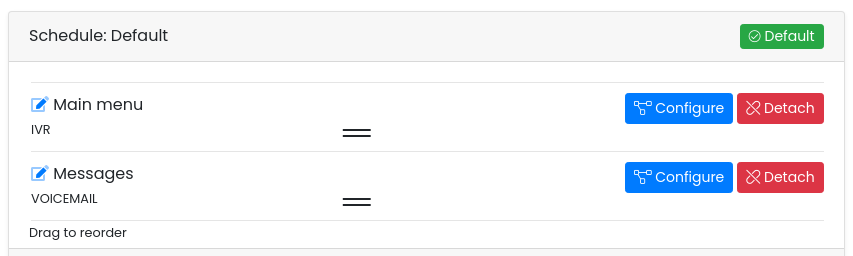
The IVR does nothing until this step. A profile only handles calls once it's in the number's routing. Select the schedule at the top of the page and click [Attach] on the IVR. Put it first in the schedule, and attach a voicemail profile after it: that's where callers land if they never press a valid key.

Test it
Every profile has a four-digit dial code shown under its label (the 2XXX number). Dial it from any extension on your system to hear the IVR and try each key, without calling the public number. Then ring the number from a mobile and go through every option once.
Troubleshooting
Callers hear the menu but pressing a key does nothing
- Check the key has a profile attached — an unassigned key plays the invalid keypress message.
- If it's a specific caller, their phone may send tones (DTMF) the system can't hear. Ask them to try from another phone.
The greeting doesn't play, or the default one plays
The Instruction Soundfile isn't set, or the TTS file wasn't copied to Sound Files. Open [Configure] and check the selection.
Callers are cut off instead of reaching voicemail
Nothing is attached after the IVR on the schedule. When the keypress tries run out, the call moves to the next profile — if there isn't one, it ends. Attach a voicemail profile below the IVR.
The menu is too slow
Shorten the script, lower Key Wait Timeout to 3 seconds, and reduce Keypress Tries to 2. Callers who know the menu can press a key at any time during the greeting.