You have an IVR menu and want one of its options to ring a Siptalk device — a desk handset, or the Cloud Softphone app on a mobile or computer. The IVR key can't point at the extension directly; it points at a ring group that contains the extension. This page is the recipe, with links to the detail.
The setup
- A device extension, with a handset or the app registered to it.
- A ring group on the number containing that extension.
- The ring group attached to a key on the IVR.
If you don't have the IVR yet, build it first with Set Up an IVR Auto Attendant and come back here for the key.
1. Extension and device
Add a device extension and register the device to it: a Yealink handset, a Wi-Fi handset, or the Cloud Softphone app on a mobile. One device per extension. The routing can be built before the device is registered; being online only matters when you test.
If it's the app on a mobile, two settings from that guide matter for a phone taking business calls all day: allow notifications, and on Android turn off battery optimisation for the app, so calls arrive when the phone is in a pocket.
2. Ring group for the extension
On the number's page (Services → Phone Numbers → Manage), create a profile of type Ring Group / Single Extension, open [Configure], add the extension as its only member and set the ring timeout — 20–25 seconds suits a mobile, 30 a desk phone. Ring Group & Voicemail Setup has the detail. A group with one member is the normal way to ring one extension; add a second member later and both ring.
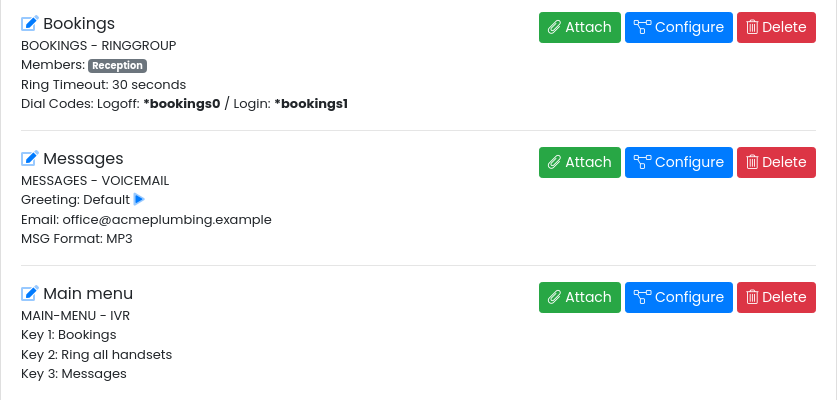
3. Attach the ring group to the IVR key
Open [Configure] on the IVR. In the keys section, find the ring group in the right-hand list, open its [Attach To:] dropdown and click the key — Key 1 for the main option. The ring group appears under that key, shown by its own profile label (the name you gave it when you created it; edit the profile to change it).
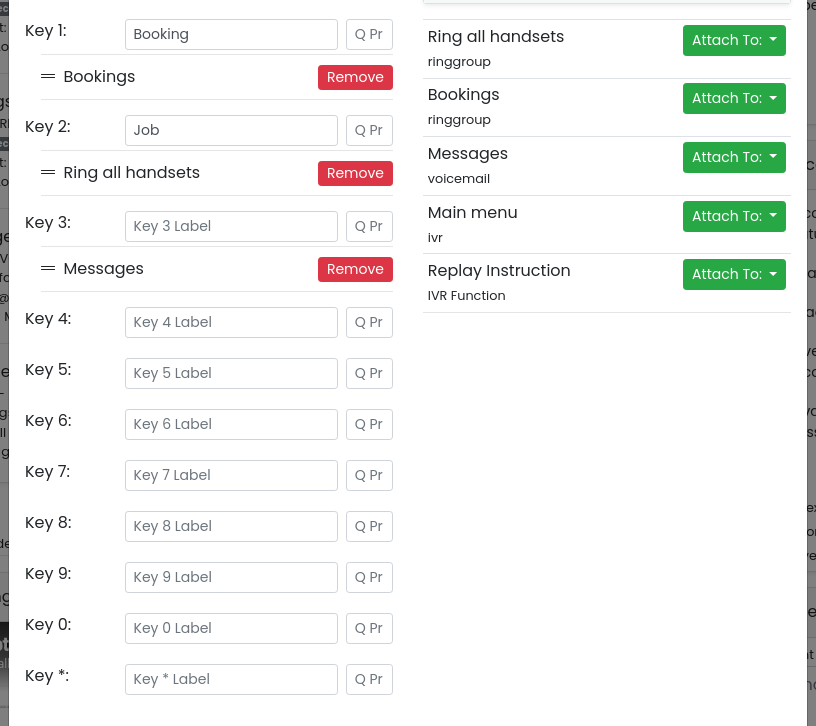
Click [Update Profile].
Check it end to end
- Check the extension shows Online under Services → Device Extensions. If it's the app, lock the mobile and put it down.
- Ring the business number from another phone and press the key. A desk handset rings almost at once; the app can take several seconds, because a push notification has to wake the phone first. The caller's number is shown; if you'd rather the handset show a name for calls to this number, turn on Label as Caller Name in the number's Label card.
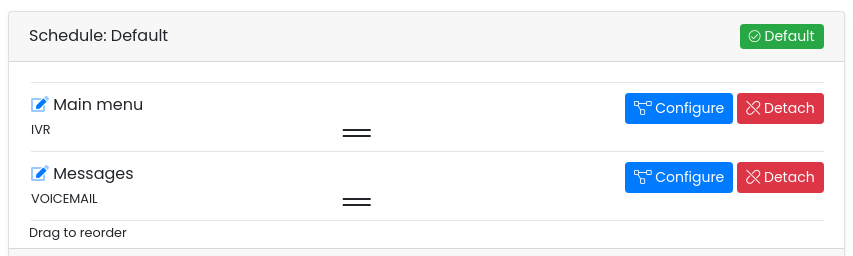
- Don't answer. After the ring timeout, the call should move on — to whatever is next on the key, or to the voicemail after the IVR — and the message should arrive by email.
- Ring again and answer, to confirm audio both ways.
Variations
- Fallback to the mobile's own number. Attach an external number profile for the mobile after the ring group on the same key. If the app isn't reachable — no data, phone off — the call falls through to a normal mobile call.
- Several people. Put all their extensions in the one ring group; every device rings and the first to answer takes it.
- Different keys, different people. One ring group per key — "press 1 for sales" rings the sales extension, "press 2 for service" rings another.
- Business hours only. Attach the IVR to an Office Hours schedule and let Default go straight to voicemail — Time Schedule Basics.