A ring group rings a set of extensions at once and connects the caller to whoever answers first. When someone joins the team, their handset doesn't ring until their extension is added to the group. This guide adds Priya's new extension to the "Ring all handsets" group on the main number.
Before you start
- The extension must already exist and be active. If it doesn't, add a device extension first. Deactivated extensions don't appear in the list.
- Know which number the ring group belongs to. Ring groups are routing profiles on a phone number, so if the same group needs changing on several numbers, repeat these steps on each one.
Find the ring group
Go to Services → Phone Numbers and click [Manage] on the number. Scroll to Available Routing Profiles. The ring group is the profile marked RINGGROUP, and its current members are listed under it. Click [Configure] on that row.
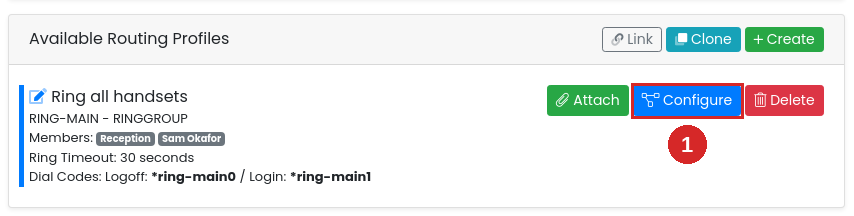
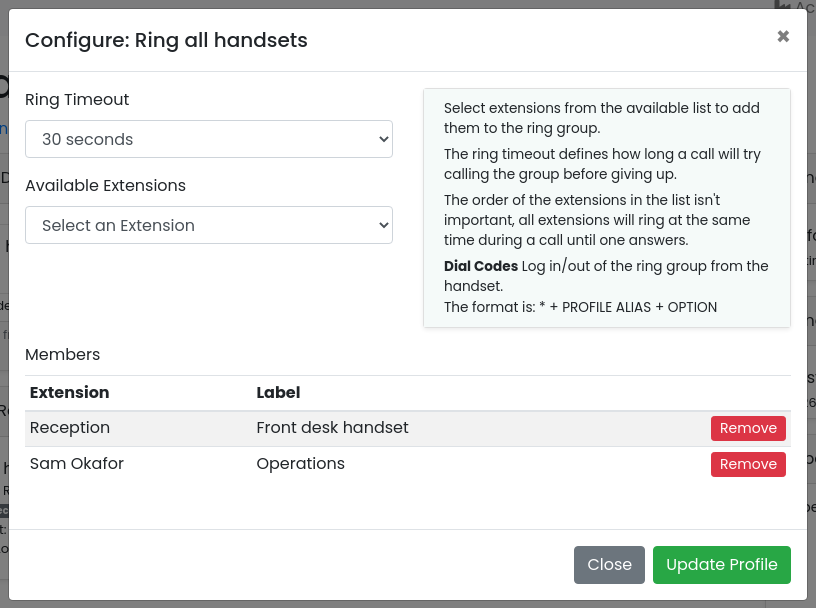
The Configure dialog opens with the group's Ring Timeout, an Available Extensions list and a Members table of who's in it now.
Add the extension
- Open the Available Extensions list and pick the extension. It moves straight into the Members table — there's no separate Add button. Pick again to add more than one.
- Click [Update Profile] to save.
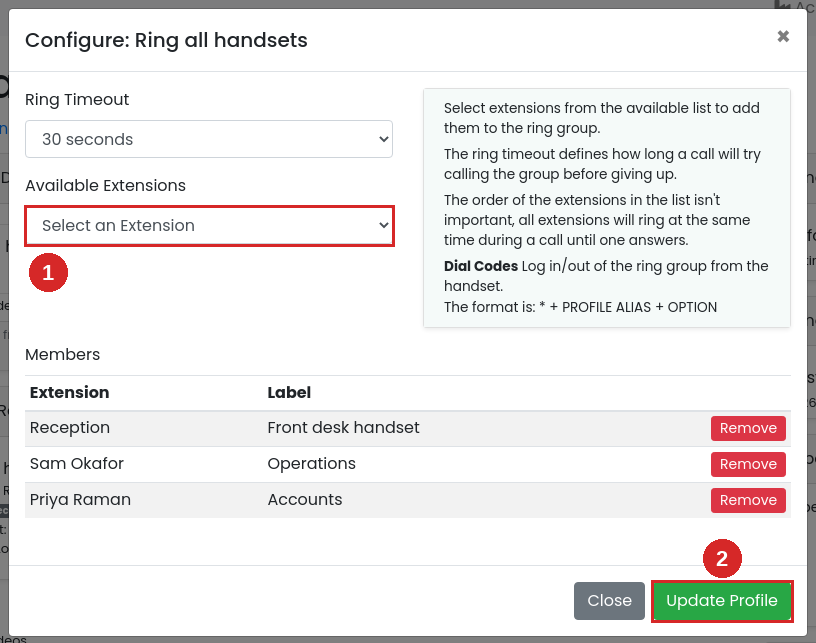
The change takes effect immediately. There's no need to touch the number's schedules — the group is already attached, and every schedule that uses it picks up the new member.
Check the change
Back on the number page, the ring group's row now lists the new extension among its members:
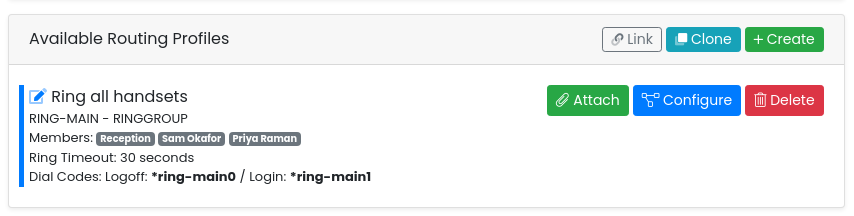
Call the number from a mobile. The new handset should ring together with the others, for as long as the ring timeout allows. Extensions in a ring group all ring at the same time; the order in the members table makes no difference.
Removing a member
Same dialog: click [Remove] next to the extension in the Members table, then [Update Profile]. For a temporary absence there's no need to edit the group at all — the member can log out of it from their own handset by dialling the Logoff code shown on the ring group's row (and back in with the Login code).
Troubleshooting
The extension isn't in the Available Extensions list
- It's already a member — extensions in the group are greyed out in the list. Check the Members table.
- It's been deactivated. Deactivated extensions are hidden; reactivate it under Services → Device Extensions first.
Added, but the handset doesn't ring
- Check the extension shows as online under Services → Device Extensions. A handset that isn't registered can't ring.
- Check the member hasn't logged out of the group with the Logoff dial code.
- If it rings briefly and stops, the group's Ring Timeout may be short — 30 seconds is a good default.
- Make sure the ring group is attached to the schedule that's active right now. Select each schedule at the top of the page and look at what's attached; see Time Schedule Basics.