The most common way a small business uses Siptalk: one number, a short menu that answers it, and the calls delivered to a mobile. This page is the recipe. Each step links to the guide with the detail.
The setup
A call flows through three things, and you build them in this order:
- A phone number on your account.
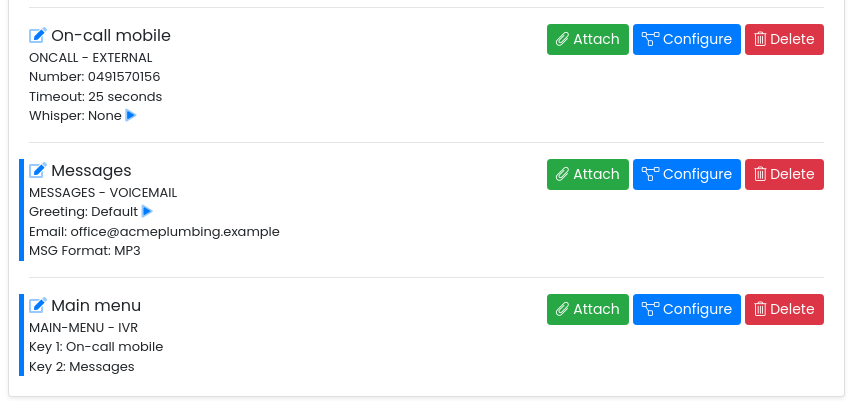
- An External Number profile on that number, holding the mobile's number — the profile that sends the call out to the mobile.
- An IVR on the number whose key 1 points at the external number profile, and key 2 at voicemail.
1. The number
Add a phone number, or port your existing one. Then go to Services → Phone Numbers and click [Manage] on it — everything else happens on that page.
2. External number profile for the mobile
In Available Routing Profiles create a profile of type External Number, configure it with the mobile's number, and set Caller ID Displayed to This Phone Number so business calls are recognisable on the mobile. Add an External Number Profile walks through every field. Then create a Voicemail to Email profile for the messages option — see Ring Group & Voicemail Setup.
3. The IVR
Make the greeting, create the IVR profile and open [Configure] — Set Up an IVR Auto Attendant is the full guide. In the keys section, open [Attach To:] on the external number profile and click Key 1; then do the same for the voicemail profile with Key 2. A two-option menu — "press 1 to speak to us, press 2 to leave a message" — is all a one-person business needs.
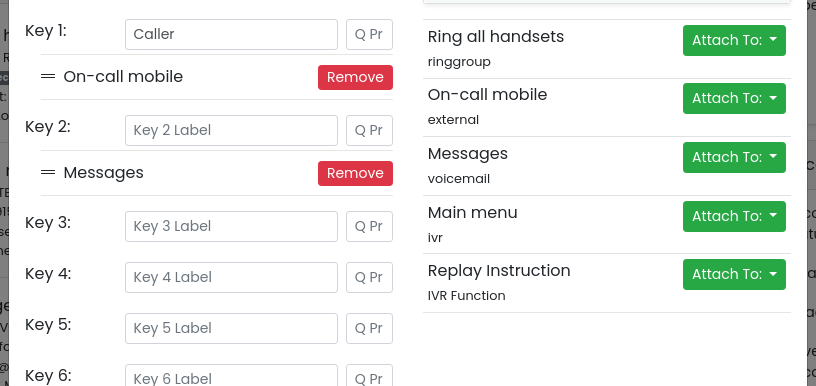
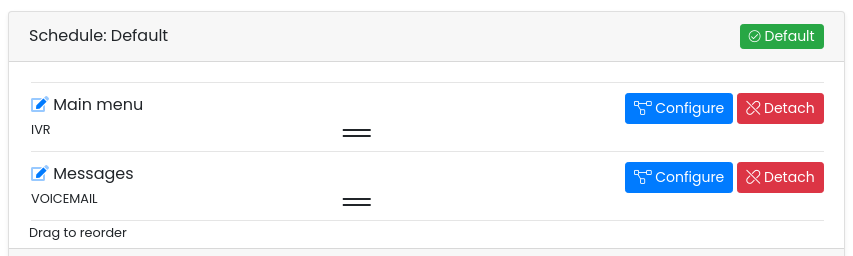
Click [Update Profile]. The IVR does nothing until it's in the number's routing: select the Default schedule at the top of the page and click [Attach] on the IVR, then attach the voicemail profile after it, so callers who never press a key still reach voicemail.
Check it end to end
- Ring the business number from another phone. You should hear the menu.
- Press 1. The mobile should ring within a few seconds, showing the business number as the caller.
- Don't answer. After the timeout, the call should go to your Siptalk voicemail (not the mobile's), and the message should arrive by email.
- Ring again, press 1 and answer, to confirm audio both ways.
Variations
- Prefer the app? To answer in the Cloud Softphone app instead — it works over Wi-Fi as well as mobile data, and shows the caller's number rather than yours — the key points at a ring group containing an extension, not at an external number. See Route IVR Calls to a Device Extension.
- Business hours only. Attach the IVR to an Office Hours schedule and let the Default schedule go straight to voicemail — Time Schedule Basics.
- Two people. Two external number profiles on the same key hunt in order: the first mobile rings, then the second if it isn't answered. Drag to set the order.
- No menu at all. Skip the IVR and attach the external number profile straight to the schedule, with voicemail after it.