Everyone who manages your Siptalk account should have their own login rather than sharing yours. You give each person a role, and the role decides which parts of the portal they can see and change. This guide creates a Bookkeeper role that can see invoices, payments and rates — and nothing else — then invites the bookkeeper.
How users and roles work
- The owner — the person who created the organisation — always has full access. Their role can't be changed and they can't be deactivated.
- Every other user has one role. A role is a named set of permissions you build under Settings → Roles, and you can give the same role to as many users as you like.
- No role means no access. A user with no role can sign in but can't see anything in your organisation.
Create the role first, so it's ready to choose when you send the invite.
Create a role
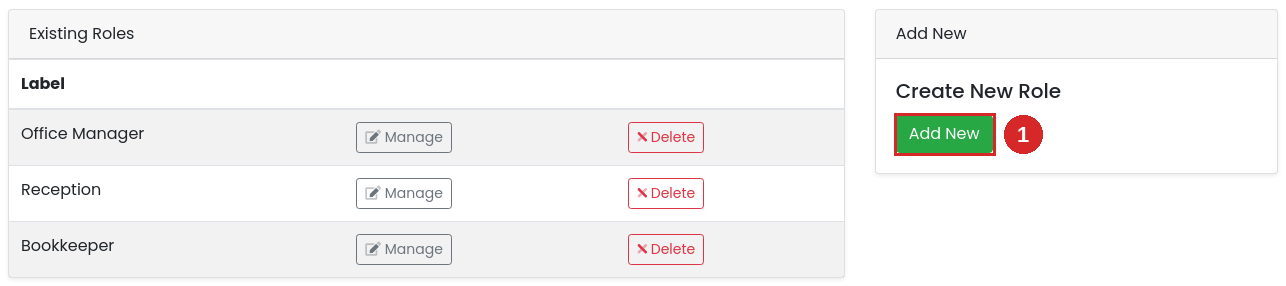
Go to Settings → Roles and click [Add New].
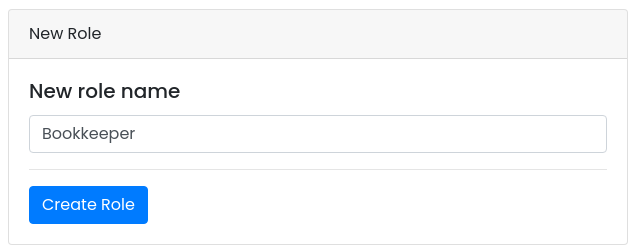
Give the role a name that describes the job — "Bookkeeper", "Reception", "Office Manager" — and click [Create Role].
Choose what the role can do
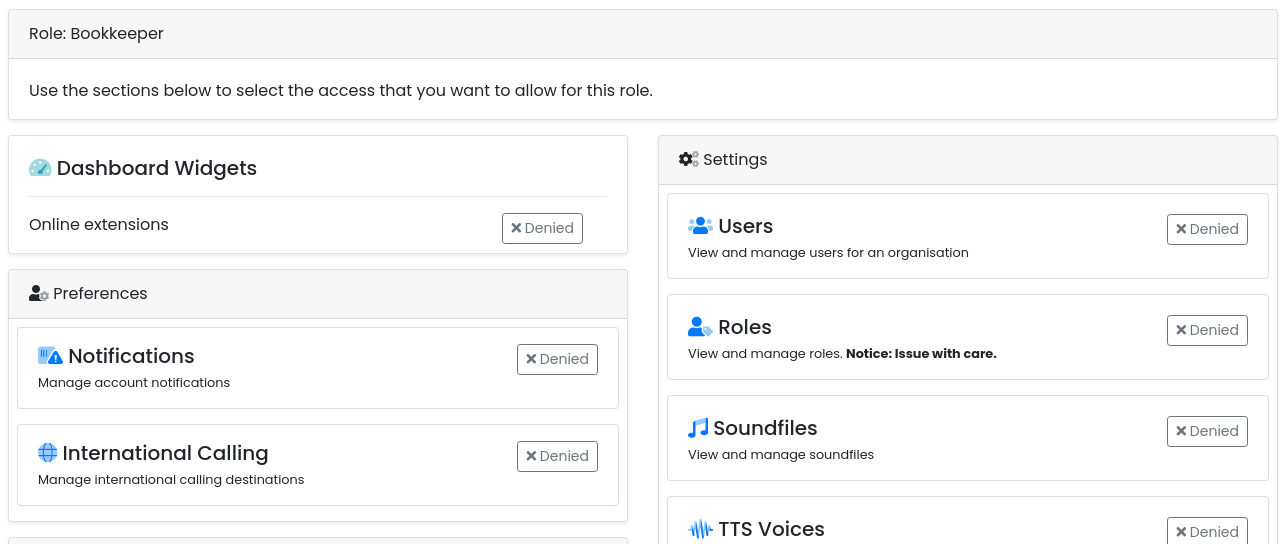
The role opens straight away in its editor. Every area of the portal is listed with an Allowed / Denied button; a new role starts with everything denied. Click a button to switch it — it saves immediately, there's no Save button.
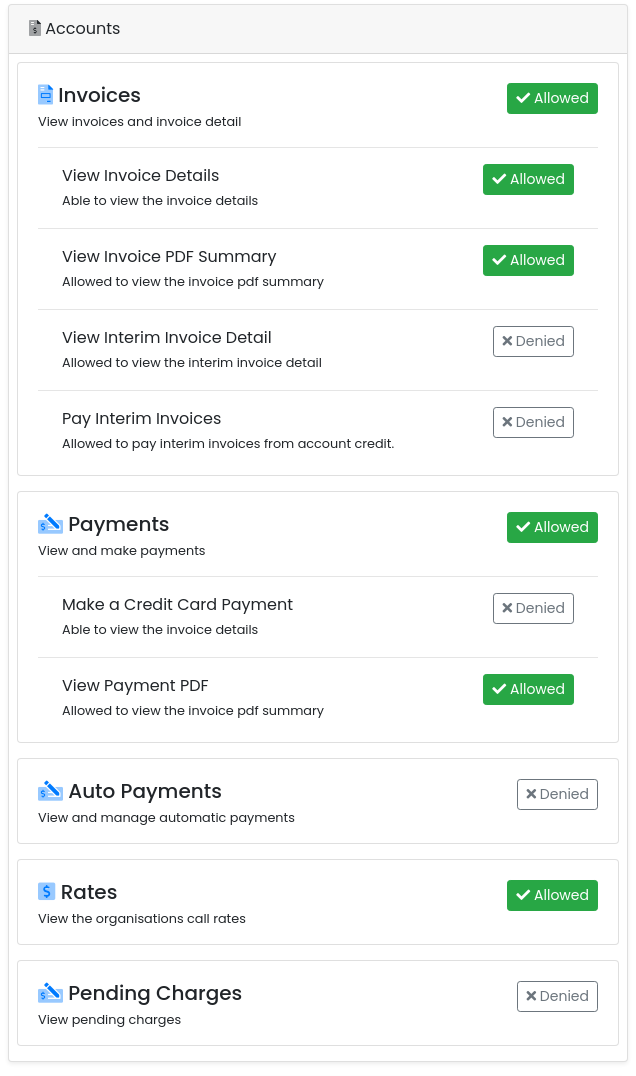
Many areas have finer permissions underneath that appear once the area itself is allowed — for Invoices, for example, viewing details and downloading the PDF. For the bookkeeper, allow Invoices (with details and PDF), Payments (with the payment PDF) and Rates in the Accounts section, and leave everything else denied.
Invite the user
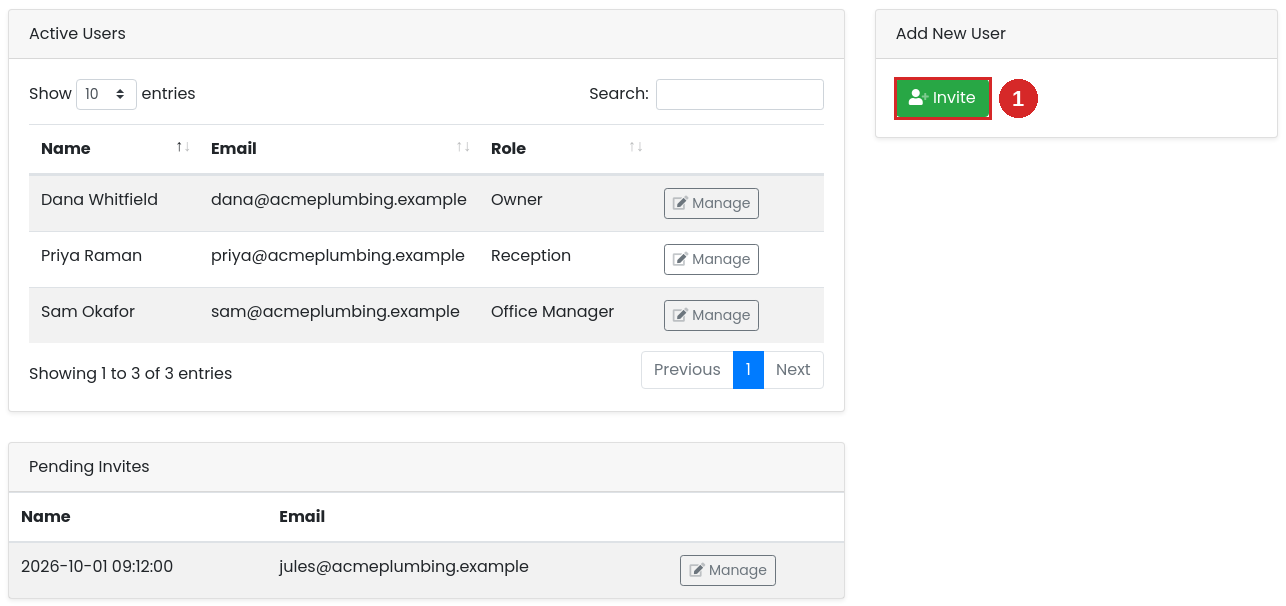
Go to Settings → Users and click [Invite].
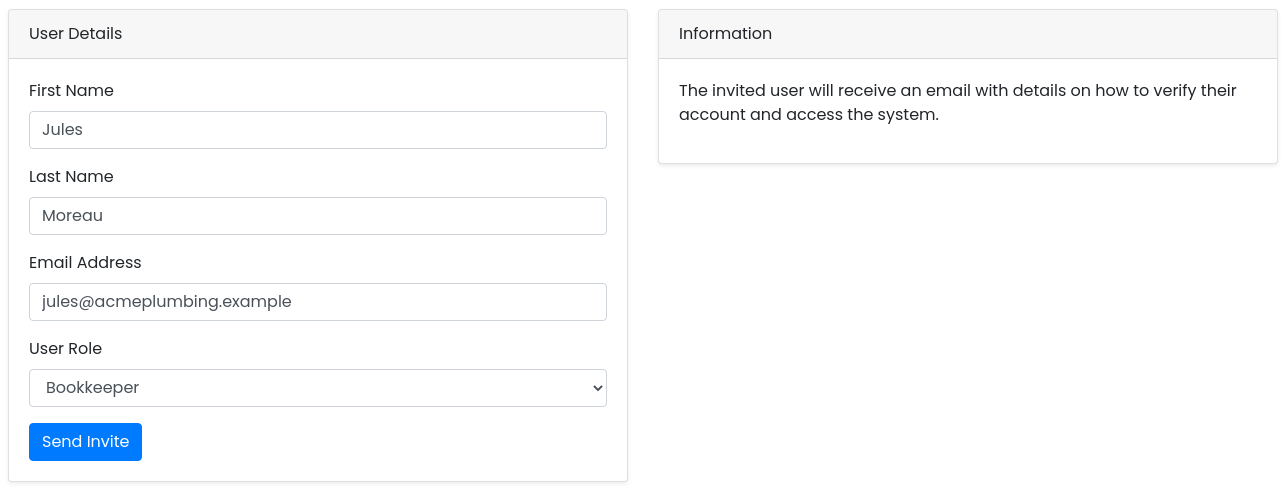
Enter their first name, last name and email address, choose the User Role, and click [Send Invite].
The invite appears under Pending Invites on the Users page until it's accepted. Click [Manage] on it to resend or cancel it.
What the invitee does
They receive an email from Siptalk, with a subject starting "Siptalk Email Verification". What happens next depends on whether they already have a Siptalk login:
- New to Siptalk: the email has a link to verify their address and finish registering. The link expires after one hour, so ask them to use it promptly. Once they've registered and signed in, they're asked to accept the invite. Register as a New User walks through registration.
- Already a Siptalk user (for example, they work with another organisation too): they just sign in as usual and accept the invite. They can switch between organisations from the top of the portal.
Once they accept, they move from Pending Invites to Active Users with the role you chose.
Change a user's role
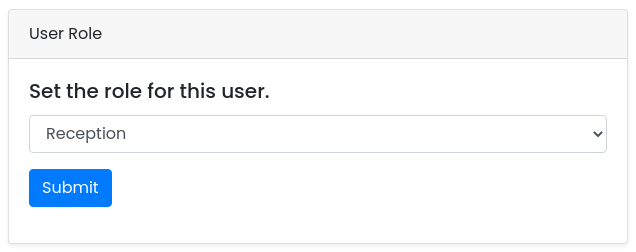
On Settings → Users, click [Manage] next to the user, pick a new role under User Role and click [Submit]. The change applies from the next page they load — they don't need to sign out.
To change what everyone with a role can do, edit the role under Settings → Roles instead — every user with that role picks up the change. When someone leaves, use [Deactivate User] on the same page; they lose access straight away and can be reactivated later.
Troubleshooting
The invitee says the link has expired
Verification links for new users last one hour. Open the invite under Pending Invites, click [Manage] and resend it.
The invite email hasn't arrived
- Ask them to check spam or junk for a message from Siptalk with "Siptalk Email Verification" in the subject.
- Check the email address under Pending Invites. If it's wrong, remove that invite and send a new one.
"User exists in organisation"
That email address already belongs to a user in your organisation. Find them under Active or Inactive Users instead; an inactive user can be reactivated.
The user signs in but sees nothing
They have no role, or their role has nothing allowed. Check their role on their user page, then check the role's permissions under Settings → Roles.
I can't change a user's role
The owner's role can't be changed, and you can't change your own. Ask another user with access to Users, or contact support.